How to Find the JBoss / WildFly Version You Are Running
Identifying the exact version of WildFly or JBoss EAP running in an environment matters for security patching, CI/CD pipelines, and support entitlement checks — not just curiosity. This guide covers every retrieval method that actually differs in what it can access: live server logs, the CLI, the Management HTTP API (the one that also works against a container with no interactive shell), the HAL console, offline inspection, and two production edge cases the basic methods don't cover — Domain-mode rolling upgrades and the WildFly 40/41 EE10/EE11 distribution split.
1. Check the Server Startup Logs
If you have access to server.log under $JBOSS_HOME/standalone/log/ (or $JBOSS_HOME/domain/servers/<server>/log/ in Domain mode), the boot line already contains both the product version and the underlying WildFly Core version:
2026-08-01 10:15:32,410 INFO [org.jboss.as] (Controller Boot Thread) WFLYSRV0025: WildFly 41.0.1.Final (WildFly Core 33.0.1.Final) started in 3120ms - Started 345 of 560 servicesWithout a running server, the same information is embedded in the module JAR filenames on disk:
find modules/ -name "*wildfly-*.jar" | head -1
./system/layers/base/org/jboss/as/messaging-activemq/main/wildfly-messaging-activemq-41.0.1.Final.jar
2. Query the Runtime with jboss-cli.sh
For a live server, connect and issue version (human-readable summary) or read product-version directly (script-friendly, single value):
$ ./bin/jboss-cli.sh --connect
[standalone@localhost:9990 /] version
JBoss Admin Command-line Interface
JBOSS_HOME: /home/francesco/wildfly-41.0.1.Final
Release: 33.0.1.Final
Product: WildFly 41.0.1.Final
JAVA_HOME: /home/francesco/.sdkman/candidates/java/current
java.version: 17.0.12
java.vm.vendor: Eclipse Adoptium
java.vm.version: 17.0.12+7
os.name: LinuxFor Ansible/Bash automation, read the single attribute instead of parsing the summary text:
$JBOSS_HOME/bin/jboss-cli.sh -c --command=":read-attribute(name=product-version)"{
"outcome" => "success",
"result" => "41.0.1.Final"
}3. Query the Management HTTP API Directly (curl)
When you don't have — or don't want to grant — an interactive CLI session (a CI runner, a health-check script, or a container with no shell access to jboss-cli.sh pre-installed), the same information is one HTTP POST away, since jboss-cli.sh is itself just a client of the Management HTTP API on port 9990:
curl --digest -u admin123:'P@ssw0rd-2026!' \
  -H "Content-Type: application/json" \
  -d '{"operation":"read-attribute","name":"product-version","json.pretty":1}' \
  http://localhost:9990/management
{
"outcome" : "success",
"result" : "41.0.1.Final"
}Note the --digest flag: by default the management realm authenticates with HTTP Digest, not Basic — a plain -u user:pass without --digest returns a 401 even with correct credentials, which is the single most common mistake when scripting against this endpoint for the first time.
4. Run the Startup Script with --version (No Full Boot Required)
The standalone.sh/standalone.bat (and domain.sh/domain.bat) scripts print the version and exit without actually starting the server — the fastest offline check when you have shell access but don't want to spin up the whole instance:
$ ./standalone.sh --version
=========================================================================

  JBoss Bootstrap Environment

  JBOSS_HOME: /home/francesco/wildfly-41.0.1.Final
  JAVA: /home/francesco/.sdkman/candidates/java/current/bin/java
  JAVA_OPTS: -Xmx16m

=========================================================================

15:13:15,892 INFO  [org.jboss.modules] (main) JBoss Modules version 2.1.6.Final
WildFly 41.0.1.Final (WildFly Core 33.0.1.Final)
5. Check via the HAL Web Management Console
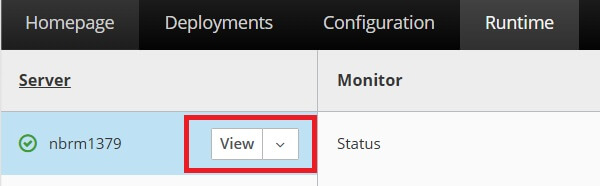
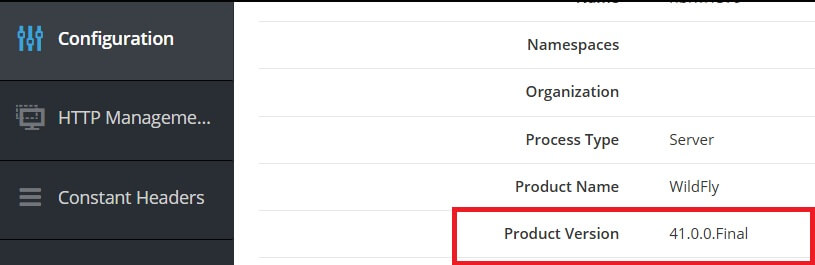
Navigate to http://localhost:9990/console/, authenticate, then open the Runtime tab and the server's View panel — the version is shown under the Configuration tab as the Management Major Version element:
6. WildFly Full vs. the EE10/EE11 Distribution Variant
Since the WildFly 40/41 release line ships two parallel distributions — the Jakarta EE 11 standard build and a companion Jakarta EE 10 variant (see Choosing the Right JDK for WildFly and JBoss EAP) — product-version alone is no longer sufficient to know exactly what you're running: both variants can carry the same numeric version. Check product-name and product-community-identifier alongside it:
$JBOSS_HOME/bin/jboss-cli.sh -c --command=":read-resource(attributes-only=true)" | grep -E "product-(name|version)""product-name" => "WildFly Full",
"product-version" => "41.0.1.Final"An EE10-variant install reports a distinct product-name value; if your CI pipeline gates a deployment on Jakarta EE 11-only APIs being available, verifying product-version alone will pass on either distribution and only fail at deploy time with a class-loading error. Gate on product-name (or, more robustly, on the actual specification-version attribute exposed by the target subsystem) instead.
7. Verifying Version Consistency Across a Domain-Mode Topology
A rolling upgrade across a Domain-mode topology is the one scenario where "the version" isn't a single answer: different server groups — or individual servers within the same group, mid-rollout — can legitimately report different product-version values for a controlled window. Query every host at once from the Domain Controller instead of checking servers one by one:
$JBOSS_HOME/bin/jboss-cli.sh -c --command="/host=*:read-attribute(name=product-version)"{
"outcome" => "success",
"result" => {
"host1" => "41.0.1.Final",
"host2" => "41.0.0.Final"
}
}A mismatch like the one above is expected mid-rollout, but treat it as a hard gate before marking the upgrade complete: leaving hosts on mixed WildFly Core versions past the maintenance window risks Domain Controller/Host Controller protocol incompatibilities on the next configuration push, not just an inconsistent version label.
8. Legacy JBoss AS (4.x–6.x)
Pre-WildFly releases predate the CLI and the Management HTTP API entirely. Two options remain:
Server log — the release tag is printed at boot:
10:23:56,860 INFO [Server] Release ID: JBoss [Trinity] 4.2.2.GA (build: SVNTag=JBoss_4_2_2_GA date=200710221139)MANIFEST.MF inspection — extract the implementation version directly from the core system JAR without starting the server:
unzip -p $JBOSS_HOME/lib/jboss-system.jar META-INF/MANIFEST.MF | grep Implementation-VersionThe JMX Console (http://localhost:8080/jmx-console/, domain jboss.system, MBean type=Server, attribute VersionNumber) also still works on these releases if the server is running, but if you're maintaining JBoss AS 4.x–6.x in 2026 the version check is the least of your architectural problems — see our JBoss AS 7 / WildFly migration guides for a path off end-of-life releases.
9. Troubleshooting Real Failures
CLI connection refused or times out: jboss-cli.sh --connect targets 127.0.0.1:9990 by default. If the management interface is bound to a non-loopback address (or a different port via jboss.management.http.port), pass it explicitly:
$JBOSS_HOME/bin/jboss-cli.sh --connect --controller=10.0.4.12:9990CLI or curl returns 401 with correct credentials: covered above — this is almost always the missing --digest flag on curl, or (less often) a user created in the wrong security realm; verify with :read-attribute(name=product-version) from a local, unauthenticated jboss-cli.sh session on the box itself to isolate a credentials problem from a network problem.
read-attribute(name=product-version) returns undefined: this happens on very old WildFly Core releases where the attribute name differs — fall back to :read-attribute(name=release-version), which has been present since the earliest WildFly Core versions.
Conclusion
Pick the method that matches what you actually have access to: jboss-cli.sh or the Management HTTP API for a live, scriptable answer; standalone.sh --version or the module JAR filenames when the server isn't running; and, once you're past a single-server sanity check, verify product-name (not just product-version) on WildFly 40/41 and check every host in a Domain topology before signing off on a rolling upgrade as complete.
Recommended Articles
Discover Where JBoss EAP/WildFly Logs Are Located: Standalone vs Domain Mode
Learn where to find and view logs in JBoss EAP/WildFly, whether running in standalone or domain mode.
WildFly Modules Slot Installation Guide: Managing Multiple Versions of a Module
Learn how to install multiple versions of a module in WildFly using slots for better management and flexibility.
Inspection and Management of WildFly Logs via Command Line Interface - A Comprehensive Guide
Learn how to inspect WildFly logs using CLI with detailed examples and parameters for efficient log management.
Discovering Default JBoss Password in WildFly Application Server
Learn about the default JBoss password available in WildFly installation. Discover how to add a user and enable the admin user.