JBoss & WildFly Tutorial for Beginners: Complete Getting Started Guide
Welcome to the ultimate JBoss and WildFly tutorial for beginners! In this comprehensive, step-by-step guide, we will walk you through the core concepts of JBoss enterprise middleware. By the end of this tutorial, you will understand the fundamentals of application servers, know how to install WildFly, deploy your first Java/Jakarta EE application, and control the server using the Management CLI.
Overview of JBoss and WildFly
To avoid confusion, let's clarify the terminology first. The term JBoss historically referred to the open-source JBoss Application Server. Today, it represents a family of enterprise middleware products sponsored by Red Hat:
- WildFly: The open-source, community-driven upstream application server project where new features, Jakarta EE standards, and performance enhancements are introduced first.
- JBoss Enterprise Application Platform (JBoss EAP): The enterprise-grade, commercially supported product built directly from the stabilized WildFly codebase, designed for mission-critical production environments.
For an in-depth comparison of subscription models and version alignments, check our detailed guide: JBoss EAP vs WildFly: The Definitive Guide.
Key Features of Modern WildFly
- Jakarta EE & MicroProfile Compliance: WildFly provides full certification for modern Jakarta EE specifications (Jakarta REST, Persistence/JPA, Security, Servlets, Enterprise Beans) and Eclipse MicroProfile APIs for cloud-native applications.
- Modular Architecture (JBoss Modules): Uses a lightweight classloading engine that isolates dependencies, eliminates classpath conflicts, and minimizes memory consumption.
- Blazing Fast Boot Times: Optimized subsystem initialization delivers sub-second startup times, making it ideal for both rapid local development and containerized deployments.
- Unified Administration: Features a powerful Web Management Console (accessible on port 9990) and an interactive Command Line Interface (
jboss-cli.sh) for runtime management. - Clustering & High Availability: Built-in support for distributed HTTP sessions, stateful EJBs, and Infinispan data caching across clustered nodes.
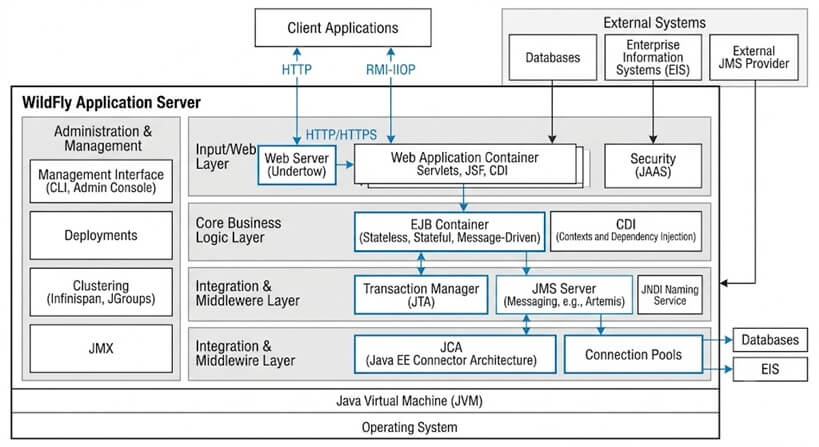
Part 1: System Prerequisites & Installation
Before installing WildFly, ensure your system meets the following requirements:
- Java Development Kit (JDK): Modern WildFly releases require JDK 17 or JDK 21 (LTS). Verify your Java installation by running
java -versionin your terminal. - Apache Maven: Required for building and deploying sample applications. Download it from Apache Maven Downloads.
Step 1: Download and Extract WildFly
- Visit the official distribution page: WildFly Downloads.
- Download the latest stable release (ZIP format).
- Extract the archive to your preferred directory (e.g.,
/opt/wildflyorC:\wildfly).
Step 2: Start the Application Server
Open your terminal, navigate to the WildFly bin directory, and launch the startup script:
# On Linux / macOS
$ cd /opt/wildfly/bin
$ ./standalone.sh

# On Windows
C:\wildfly\bin> standalone.bat
This command starts WildFly in Standalone mode (a single server instance running its own JVM). Once booted, you will see output similar to this in your console logs:
16:01:12,361 INFO  [org.jboss.ws.common.management] (MSC service thread 1-1) JBWS022052: Starting JBossWS
16:01:12,362 INFO  [org.jboss.as.server.deployment.scanner] (MSC service thread 1-5) WFLYDS0013: Started FileSystemDeploymentService for directory /opt/wildfly/standalone/deployments
16:01:12,410 INFO  [org.jboss.as.server] (Controller Boot Thread) WFLYSRV0212: Resuming server
16:01:12,412 INFO  [org.jboss.as] (Controller Boot Thread) WFLYSRV0060: Http management interface listening on http://127.0.0.1:9990/management
16:01:12,412 INFO  [org.jboss.as] (Controller Boot Thread) WFLYSRV0051: Admin console listening on http://127.0.0.1:9990
16:01:12,413 INFO  [org.jboss.as] (Controller Boot Thread) WFLYSRV0025: WildFly Full started in 420ms - Started 288 of 530 services
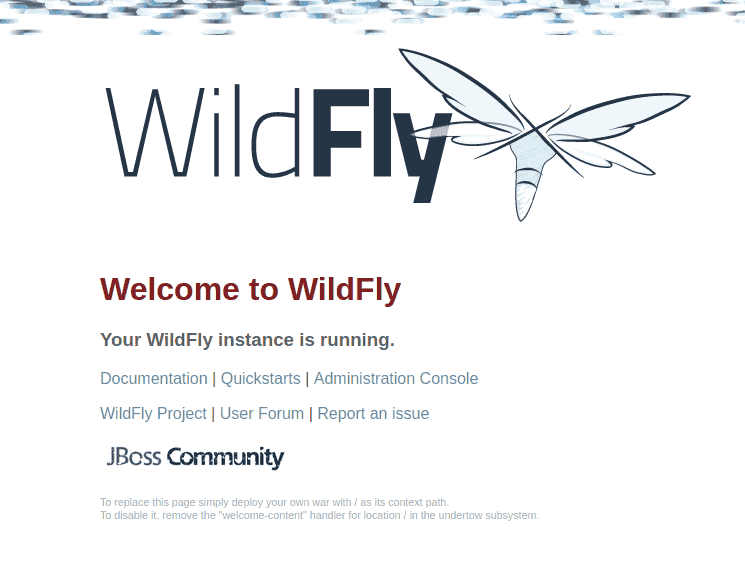
Verify that the server is running by opening your browser and visiting the welcome page at http://localhost:8080:
Part 2: Deploying Your First Application
Now that WildFly is up and running, let's deploy a sample application from the official WildFly Quickstarts Repository.
Step 1: Build and Deploy via Maven Plugin
Clone or download the quickstarts repository and navigate to the helloworld sample folder:
$ git clone https://github.com/wildfly/quickstart.git
$ cd quickstart/helloworld
Deploy the application directly to your running WildFly instance using the wildfly-maven-plugin:
$ mvn clean package wildfly:deployUpon successful build and deployment, your WildFly server console will log the web context registration:
INFO  [org.wildfly.extension.undertow] WFLYUT0021: Registered web context: '/helloworld'
INFO  [org.jboss.as.server] WFLYSRV0010: Deployed "helloworld.war" (runtime-name : "helloworld.war")
Step 2: Test the Endpoint
Test the deployed Servlet by opening your browser or running curl:
$ curl http://localhost:8080/helloworld/HelloWorld

helloworld
Hello World!
Part 3: Managing WildFly via Management CLI
WildFly includes a command-line tool (jboss-cli.sh) that allows administrators to inspect runtime states, configure datasources, and manage application lifecycle operations.
Connect to the running server instance by executing:
$ /opt/wildfly/bin/jboss-cli.sh --connectInside the interactive CLI prompt, execute the following commands:
# Undeploy the helloworld application
[standalone@localhost:9990 /] undeploy helloworld.war

# Gracefully shutdown the WildFly server
[standalone@localhost:9990 /] shutdown
Frequently Asked Questions (FAQs)
What is the difference between Standalone and Domain mode?
Standalone mode runs a single, independent server instance managed by its own configuration file (standalone.xml). Domain mode allows centralized management of multiple server instances across different machines from a single Domain Controller host.
Which Java version should I use with WildFly?
Modern WildFly releases (WildFly 35 and newer) require a minimum of JDK 17. For optimal performance and long-term security updates, JDK 21 (LTS) is the recommended runtime environment.
How do I access the WildFly Admin Console?
The Admin Console is available at http://localhost:9990. To access it for the first time, run the add-user.sh (or add-user.bat) script located in the bin folder to create a Management User account.
How do I change the default HTTP port (8080) or Management port (9990)?
You can override ports at server startup using system properties without editing configuration files:
# Offset all ports by 100 (HTTP becomes 8180, Management becomes 10090)
$ ./standalone.sh -Djboss.socket.binding.port-offset=100
Conclusion
In this beginner's guide, you learned the core architecture of JBoss and WildFly, installed the application server, deployed a sample Jakarta EE web application using Maven, and managed the runtime via CLI. You now have a solid foundation to explore more advanced topics such as configuring datasources, security domains, and clustering.
Recommended Articles
Choosing the Right JDK for WildFly and JBoss EAP: A Comprehensive Guide
Which Java version should you use for WildFly and JBoss EAP? Check our JDK compatibility guide for WildFly 35+ & EAP 8.x to choose between Java 17, 21 & 25.
Windup: Migrate Your JBoss EAP 7 Application to JBoss EAP 8 with Detailed Reports and Migration Steps
Learn how to use Windup for a migration report from JBoss EAP 7 to JBoss EAP 8. #Java #Middleware #CloudNative
Deploying Java Web Start Applications on WildFly/JBoss EAP 8
Learn how to deploy Java Web Start applications on WildFly/JBoss EAP 8 with this step-by-step guide.
WildFly vs JBoss EAP: Comprehensive Comparison and Support Policies
Discover the key differences between WildFly and JBoss EAP, including support policies and version updates. #WildFly #JBossEAP #EnterpriseJava