How to Configure SSL/HTTPS on WildFly (2026 Edition)
Securing your applications with SSL/HTTPS in WildFly or JBoss EAP is essential for protecting sensitive data and ensuring compliance with modern security standards. In this updated guide, you will learn how to configure HTTPS on WildFly in 2026, using secure TLS protocols and managing certificates with modern tools.
Using the SSL Wizard
Before getting into the details of manual Certificate Creation, we recommend taking a look at the SSL Wizard. This is a tool which allows creating certificates using a JavaFX UI. Simply head to https://github.com/wildfly-security-incubator/tlswizard. Download the zip and run it with:
mvn clean javafx:runThis is a community-maintained utility; if you hit issues building or running it against a recent JDK, the manual keytool approach described below always works and is what we recommend for production and scripted/automated setups.
Create Server and Client Certificates
The keytool utility stores the keys and certificates in a keystore file, which is a repository of certificates used for identifying a client or a server. Typically, a keystore contains one client's or one server's identity, which can optionally include a password.
You can create a certificate for your server using the following command:
$ keytool -genkeypair -alias localhost -keyalg RSA -keysize 2048 -validity 365 \
    -keystore server.keystore -storetype PKCS12 \
    -dname "cn=Server Administrator,o=Acme,c=GB" -keypass secret -storepass secret
This command creates the keystore server.keystore in the working directory, with the password "secret". It generates a public/private key pair for the entity whose "distinguished name" has a common name of Server Administrator, organization of Acme and two-letter country code of GB.
TIP: Since JDK 9, PKCS12 — not JKS — is the JVM's default keystore type, and it's what we use above with -storetype PKCS12. PKCS12 is the standardized, language-neutral way of storing encrypted private keys and certificates, unlike JKS which is a proprietary, Java-specific format. If you're working with an older keystore still in JKS format, you can convert it to PKCS12 with:
keytool -importkeystore -srckeystore server.keystore -destkeystore server.keystore -deststoretype pkcs12Now let's store the server keystore into the configuration folder of the application server:
$ cp server.keystore $JBOSS_HOME/standalone/configurationIf you only need one-way authentication (Server → Client) then you are done.
Configuring Two-Way SSL
On the other hand, if you need two-way authentication (Server ↔ Client) then we need to create the client certificates as well and export them to create a truststore.
The following command will create the client certificate, which you can use to authenticate against the server when accessing a resource through SSL:
$ keytool -genkeypair -alias client -keyalg RSA -keysize 2048 -validity 365 \
    -keystore client.keystore -storetype PKCS12 -dname "CN=client" -keypass secret -storepass secret
Now export both the client and the server keystores into a certificate file:
$ keytool -exportcert -keystore server.keystore -alias localhost -keypass secret -storepass secret -file server.crt

$ keytool -exportcert -keystore client.keystore -alias client -keypass secret -storepass secret -file client.crt
Finally, import the certificates into the server's and client's truststores:
$ keytool -importcert -keystore server.truststore -storetype PKCS12 -storepass secret -alias client -trustcacerts -file client.crt -noprompt

$ keytool -importcert -keystore client.truststore -storetype PKCS12 -storepass secret -alias localhost -trustcacerts -file server.crt -noprompt
Finally, we will also store the client.truststore into the configuration folder of the application server:
$ cp client.truststore $JBOSS_HOME/standalone/configurationConfiguring One-Way SSL / HTTPS for WildFly Applications
Elytron is now the only option
Older editions of this article described choosing between Elytron and the "legacy" security realm-based SSL configuration on WildFly 11+. As of WildFly 25, legacy security realms have been fully removed — current WildFly releases (including the latest 40.x line) support Elytron only. The verification steps below remain useful if you're troubleshooting a much older, pre-25 WildFly instance that may still have a legacy realm bound to the listener; on any current WildFly version you can skip straight to the Elytron batch script.
To verify whether an older instance still has a legacy security realm bound to the https-listener, check with:
/subsystem=undertow/server=default-server/https-listener=https:read-attribute(name=security-realm)
{
    "outcome" => "success",
    "result" => undefined
}
The above command shows that there is no legacy ApplicationRealm bound to the https-listener. You can jump straight to the batch script below.
On the other hand, if the https-listener uses a legacy ApplicationRealm for its SSL configuration, you need to undefine it first:
/subsystem=undertow/server=default-server/https-listener=https:undefine-attribute(name=security-realm)Next, run the following CLI batch script. The script will add the keystore, the key manager, and the ssl-context configuration in the elytron subsystem. Finally, it will store the SSL context information in the https-listener. Note the protocols attribute below: we enable both TLSv1.3 (preferred, and negotiated first when both peers support it) and TLSv1.2 for backward compatibility — TLS 1.0 and 1.1 should never be enabled, as both are deprecated and considered insecure:
batch
# Configure Server Keystore
/subsystem=elytron/key-store=demoKeyStore:add(path=server.keystore,relative-to=jboss.server.config.dir,credential-reference={clear-text=secret},type=PKCS12)
# Server Keystore credentials
/subsystem=elytron/key-manager=demoKeyManager:add(key-store=demoKeyStore,credential-reference={clear-text=secret})
# Server SSL Context Protocols
/subsystem=elytron/server-ssl-context=demoSSLContext:add(key-manager=demoKeyManager,protocols=["TLSv1.3","TLSv1.2"])

# Store SSL Context information in undertow
/subsystem=undertow/server=default-server/https-listener=https:write-attribute(name=ssl-context,value=demoSSLContext)

run-batch

reload
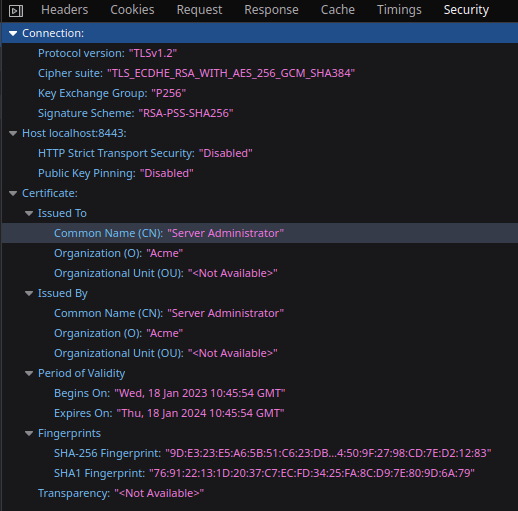
Finally, try to access WildFly through the https://localhost:8443 address. You will get a warning as you are using a self-signed certificate. If you add an exception to the browser, you will be running through the SSL channel, with your certificate.
As you can see from the Browser Developer Console, the Connection uses a Transport Layer Security channel with the data from our Certificate:
Alternatively, you can use the curl command with the --verbose option (-v) to see details about the SSL/TLS handshake, or the -tlsv1.3 flag to force TLS 1.3 specifically:
curl -v --tlsv1.3 https://localhost:8443TIP: You can also define a default SSL context to be used by the Elytron subsystem, by setting the default-ssl-context attribute, referencing the SSLContext which should be globally registered as the default.
How to View Your Certificate
You can dump your SSL session from the command line using the openssl tool as follows:
$ openssl s_client -showcerts -connect localhost:8443To confirm which protocol was actually negotiated, add -tls1_3 or -tls1_2 to force a specific version and check the "Protocol" line in the output.
As an alternative, you can also dump the Certificate from the CLI by referencing its keystore:
/subsystem=elytron/key-store=demoKeyStore:read-alias(alias=localhost,verbose=false)Changes in Your Configuration
If you have completed the above steps, the following tls section should be in your XML Configuration:
<tls>
    <key-stores>
        <key-store name="demoKeyStore">
            <credential-reference clear-text="secret"/>
            <implementation type="PKCS12"/>
            <file path="server.keystore" relative-to="jboss.server.config.dir"/>
        </key-store>
    </key-stores>
    <key-managers>
        <key-manager name="demoKeyManager" key-store="demoKeyStore">
            <credential-reference clear-text="secret"/>
        </key-manager>
    </key-managers>
    <server-ssl-contexts>
        <server-ssl-context name="demoSSLContext" protocols="TLSv1.3 TLSv1.2" key-manager="demoKeyManager"/>
    </server-ssl-contexts>
</tls>
Finally, here is the corresponding undertow section:
<subsystem xmlns="urn:jboss:domain:undertow:13.0" default-server="default-server" default-virtual-host="default-host" default-servlet-container="default" default-security-domain="other" statistics-enabled="${wildfly.undertow.statistics-enabled:${wildfly.statistics-enabled:false}}">
    <buffer-cache name="default"/>
    <server name="default-server">
        <http-listener name="default" socket-binding="http" redirect-socket="https" enable-http2="true"/>
        <https-listener name="https" socket-binding="https" ssl-context="demoSSLContext" enable-http2="true"/>
        <host name="default-host" alias="localhost">
            <location name="/" handler="welcome-content"/>
            <filter-ref name="server-header"/>
            <filter-ref name="x-powered-by-header"/>
            <http-invoker security-realm="ApplicationRealm"/>
        </host>
    </server>
</subsystem>
Note that the undertow namespace version (urn:jboss:domain:undertow:13.0 at the time of writing) advances with each WildFly major release; always compare against the version your specific WildFly instance generates in standalone.xml rather than hardcoding a namespace version across upgrades.
Configuring Mutual SSL Authentication for WildFly Applications
Mutual TLS (mTLS) provides the same security as one-way TLS, with the addition of authentication and non-repudiation of the client, using digital signatures. When mutual authentication is in place, the server requests the client to provide a certificate in addition to presenting its own certificate to the client. Mutual authentication requires an extra round trip for the client certificate exchange, and the client must obtain and maintain a valid certificate. We can secure our WAR application deployed on WildFly with mutual (two-way) client certificate authentication and grant access permissions or privileges to legitimate users only.
IMPORTANT: It is assumed that you have already completed the One-Way SSL configuration for the server as discussed earlier in this tutorial!
In order to update your One-Way configuration to use Mutual SSL, we need an SSL context which also includes the Client Truststore and TrustManager in its configuration:
batch

# Add the Truststore, TrustManager to a SSL Context configuration
/subsystem=elytron/key-store=demoTrustStore:add(path=client.truststore,relative-to=jboss.server.config.dir,type=PKCS12,credential-reference={clear-text=secret})

/subsystem=elytron/trust-manager=demoTrustManager:add(key-store=demoTrustStore)

/subsystem=elytron/server-ssl-context=twoWaySSL:add(key-manager=demoKeyManager,trust-manager=demoTrustManager,protocols=["TLSv1.3","TLSv1.2"],need-client-auth=true)

# This is only needed on pre-WildFly-25 servers still using the Legacy security realm
/subsystem=undertow/server=default-server/https-listener=https:undefine-attribute(name=security-realm)

# Store SSL Context information in undertow
/subsystem=undertow/server=default-server/https-listener=https:write-attribute(name=ssl-context,value=twoWaySSL)

run-batch

reload
Using the CLI Security Command to Configure One-Way HTTPS
If you prefer, a simpler way to enable SSL for the HTTP server is by means of the security enable-ssl-http-server CLI command. This command has the advantage of combining the definition of the key-store, key-manager, and ssl-context in a single command. Assuming the file server.keystore is in the same folder as jboss-cli, you can enable SSL for the HTTP server as follows:
[standalone@localhost:9990 /] security enable-ssl-http-server --key-store-path=server.keystore --key-store-password=secret

Server reloaded. SSL enabled for default-server ssl-context is ssl-context-server.keystore key-manager is key-manager-server.keystore key-store is server.keystore
Your One-Way SSL configuration is ready and the server has been reloaded to reflect the changes. You can also use the --interactive option, which will let you create the keystore as well. Here is a transcript of a sample SSL configuration for the HTTP server, which will eventually create the file wildfly.keystore, the certificate file wildfly.pem, and the wildfly.csr file in the server configuration directory:
[standalone@localhost:9990 /] security enable-ssl-http-server --interactive
Please provide required pieces of information to enable SSL:

Certificate info:
Key-store file name (default default-server.keystore): wildfly.keystore
Password (blank generated): password
What is your first and last name? [Unknown]: John Smith
What is the name of your organizational unit? [Unknown]: QA
What is the name of your organization? [Unknown]: Acme
What is the name of your City or Locality? [Unknown]: London
What is the name of your State or Province? [Unknown]:
What is the two-letter country code for this unit? [Unknown]: UK
Is CN=John Smith, OU=QA, O=Acme, L=London, ST=Unknown, C=UK correct y/n [y]?y
Validity (in days, blank default):
Alias (blank generated): jsmith
Enable SSL Mutual Authentication y/n (blank n):n

SSL options:
key store file: wildfly.keystore
distinguished name: CN=John Smith, OU=QA, O=Acme, L=London, ST=Unknown, C=UK
password: password
validity: default
alias: jsmith
Server keystore file wildfly.keystore, certificate file wildfly.pem and wildfly.csr file will be generated in server configuration directory.

Do you confirm y/n :y
Server reloaded.
SSL enabled for default-server
ssl-context is ssl-context-24f3d44b-a511-4b54-9610-ac414a8b6143
key-manager is key-manager-24f3d44b-a511-4b54-9610-ac414a8b6143
key-store   is key-store-24f3d44b-a511-4b54-9610-ac414a8b6143
TLS in Containers, Kubernetes and OpenShift
The steps above assume a bare-metal or VM-based WildFly install with keystores sitting directly in standalone/configuration. When you move to containers, a few adjustments keep this same setup production-ready:
- Never bake private keys into container images. Mount the keystore as a Kubernetes/OpenShift Secret (or a Docker/Podman bind mount) instead, so certificate rotation doesn't require rebuilding the image.
- Automate certificate issuance and renewal with cert-manager on Kubernetes/OpenShift, or an ACME client such as Certbot, rather than manually re-running keytool before every expiry.
- Consider terminating TLS at the Ingress/Route or service mesh layer for east-west traffic between pods, and reserve WildFly-level TLS (as configured in this guide) for edge-facing services or where end-to-end encryption is a hard requirement.
- Keep TLS 1.2/1.3 enforcement consistent between the proxy/ingress and WildFly itself — a common misconfiguration is allowing older protocols at the edge while WildFly is correctly locked down to TLS 1.2/1.3 only.
Conclusion
This tutorial has covered how to configure TLS/SSL on the WildFly application server using the current, Elytron-only configuration model, and how to prefer TLS 1.3 while retaining TLS 1.2 for compatibility. If you want to dive deeper into TLS 1.3 specifically, you can continue reading here: Configuring TLS 1.3 on WildFly Application Server
On the other hand, if you want to configure TLS/SSL for WildFly Management interfaces, check out this tutorial: Securing JBoss / WildFly Management Interfaces: the easy way
Frequently Asked Questions
Should I still use the legacy security realm to configure SSL on WildFly?
No. Legacy security realms were fully removed as of WildFly 25, so current WildFly releases only support the Elytron-based configuration shown in this guide. If you're on a WildFly version older than 25, plan an upgrade — Elytron has been the recommended approach since WildFly 11.
Should I use JKS or PKCS12 for my WildFly keystore?
Use PKCS12. It has been the JVM's default keystore format since JDK 9, is a standardized, non-proprietary format, and is fully supported by the Elytron key-store resource via type=PKCS12. JKS still works but offers no advantage over PKCS12 today.
Which TLS protocols should I enable on WildFly in 2026?
Enable TLSv1.3 and TLSv1.2 only. TLS 1.0 and TLS 1.1 are deprecated, unsupported by modern browsers, and generally fail compliance checks such as PCI-DSS — they should never appear in your server-ssl-context protocols list.
How do I know if my WildFly HTTPS connection actually negotiated TLS 1.3?
Use curl -v --tlsv1.3 https://your-host:8443, or openssl s_client -tls1_3 -connect your-host:8443, and check the reported protocol in the handshake output. Your browser's developer tools (Security tab) will also show the negotiated protocol version.
Do I need mutual TLS (two-way SSL) for every application?
No. Mutual TLS adds meaningful security for service-to-service or B2B integrations where both sides need to authenticate each other, but it adds operational overhead (client certificate issuance and rotation) that isn't justified for typical browser-facing applications, which are already well protected by one-way TLS plus standard authentication (form login, OIDC, etc.).
Can I terminate TLS at a load balancer instead of configuring it on WildFly directly?
Yes, and it's a common production pattern, especially in Kubernetes/OpenShift where an Ingress or Route typically terminates TLS. In that case WildFly can run HTTP internally on a private network, though for defense-in-depth or strict compliance requirements, some teams still configure end-to-end TLS through to WildFly as shown in this guide.
What's the difference between the SSL Wizard and the CLI security enable-ssl-http-server command?
Both aim to simplify certificate creation and TLS setup. The SSL Wizard is a separate, community-maintained JavaFX GUI tool for generating certificates outside of WildFly. The security enable-ssl-http-server CLI command is built into WildFly itself and, in one step, creates the keystore, key-manager, and ssl-context resources and wires them to the https-listener — making it the faster path for a one-way SSL setup directly from jboss-cli.
Recommended Articles
Automate WildFly SSL Certificate Management with Let's Encrypt
Secure your WildFly server with automated SSL/HTTPS using Let's Encrypt. Step-by-step guide included.
How to Solve javax.net.ssl.SSLHandshakeException
How to diagnose and fix javax.net.ssl.SSLHandshakeException in Java, WildFly, Spring Boot, Quarkus and microservices: trust stores, TLS 1.2/1.3, keytool, debugging and production best practices.
Configure Transport Layer Security (TLS) v.1.3 on WildFly Application Server
Learn how to enable TLS 1.3 on WildFly application server for improved encryption and security, with reduced latency and deprecated feature removal.
Mastering Common Elytron Commands in Modern WildFly Releases
Discover essential Elytron commands for modern WildFly, including Credential Stores, Key Stores, Trust Stores, SSL/TLS, and more. #WildFly #JavaSecurity #Elytron