How to run JUnit 5 Tests with JBang
JBang revolutionizes Java scripting by enabling instant execution of standalone Java files without configuring complex Maven or Gradle project files. By integrating JUnit 5's ConsoleTestExecutor launcher API with JBang //DEPS directives, you can build robust automated test suites for lightweight Java scripts directly from the command line. This tutorial demonstrates how to write and execute standalone JUnit 5 test scripts using JBang.
Why using JBang to Test ?
Traditional set-ups often involve configuring complex build systems or IDE-specific environments to execute JUnit tests on Java scripts. However, the integration of JBang with JUnit introduces a paradigm shift in this approach, offering several distinct advantages:
- Simplicity in Setup: JBang simplifies the setup by enabling the execution of JUnit tests directly from the command line without setting up elaborate project structures for testing.
- Dependency Management Made Effortless: JBang’s integration with JUnit allows seamless dependency management, enabling developers to easily include required libraries for testing.
Before we go to a practical example, If you are new to JBang check this article: JBang: Create Java scripts like a pro
A practical JUnit 5 Test Example with JBang
Firstly, open a notepad or an IDE that supports JBang and create the following Java Class:
//usr/bin/env jbang "$0" "$@" ; exit $?

//DEPS org.junit.jupiter:junit-jupiter-engine:5.10.1
//DEPS org.junit.platform:junit-platform-console:1.8.2
//DEPS org.hamcrest:hamcrest-library:2.1

import java.io.PrintWriter;

import org.junit.jupiter.api.Test;
import static org.hamcrest.MatcherAssert.assertThat;
import static org.hamcrest.Matchers.equalTo;

import org.junit.platform.console.options.CommandLineOptions;
import org.junit.platform.console.tasks.ConsoleTestExecutor;

import java.nio.file.Paths;
import java.util.Collections;

public class JUnit5Example {

    @Test
    void testGreeting() {
        Greeter hw = new Greeter();
        assertThat(hw.greeting("me"), equalTo("Hello me"));
    }

    public static void main(String... args) throws Exception {
        CommandLineOptions options = new CommandLineOptions();
        options.setSelectedClasses(Collections.singletonList(JUnit5Example.class.getName()));
        options.setReportsDir(Paths.get(System.getProperty("user.dir")));
        new ConsoleTestExecutor(options).execute(new PrintWriter(System.out));
    }

    class Greeter {
        String greeting(String name) {
            return "Hello " + (name != null ? name : "");
        }
    }

}
The CommandLineOptions class is a utility class provided by the JUnit Platform that allows you to customize the execution of JUnit tests from the command line. It provides various options that you can set to control the test runner behavior, such as the list of classes to execute, the output directory for test reports, and the maximum number of threads to use.
In the context of this example, the CommandLineOptions instance lets us specify test class (JUnit5Example) for execution and sets the reports directory to the current working directory (user.dir).
Then, run your application as follows:
jbang JUnit5Example.javaIf you have an IDE that includes a plugin or extension for JBang, such as Visual Studio, you can run it directly from the IDE:
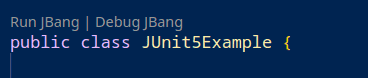
Then, you can check the result of the Test:

You can find the source JBang script in our repository: https://github.com/fmarchioni/mastertheboss/blob/master/jbang/JUnit5Example.java
Test Class in in another File
In our minimal Test example, we have included both the Test Class and the JUnit Test in the same File. This is a quick way to start, however in most cases you will need to separate your Main Class from the Test Class. That’s not a issue: just include in your JUnit/JBang Class a reference to the external Java Source file:
//SOURCES MyTestClass.javaConclusion
In essence, JBang’s simplicity and immediate feedback significantly reduce the barrier to entry for learning JUnit, allowing you to focus more on writing effective tests and understanding testing methodologies rather than dealing with complex setup and execution procedures.
Testing Separate Java Source Files with JBang
In real-world scripting scenarios, you should separate your business logic class from your test class. JBang allows referencing external Java source files using the //SOURCES directive:
///usr/bin/env jbang "$0" "$@" ; exit $?
//DEPS org.junit.jupiter:junit-jupiter-api:5.12.0
//DEPS org.junit.jupiter:junit-jupiter-engine:5.12.0
//DEPS org.junit.platform:junit-platform-console:1.12.0
//SOURCES Calculator.java

import org.junit.jupiter.api.Test;
import static org.junit.jupiter.api.Assertions.assertEquals;

public class CalculatorTestScript {
    @Test
    void testAdd() {
        Calculator calc = new Calculator();
        assertEquals(5, calc.add(2, 3));
    }
}
Recommended Articles
Quick JBang Scripting with IntelliJ IDEA: Setup & Debug Guide
Learn how to write, edit, and debug JBang scripts in IntelliJ IDEA using 'jbang edit' and the official JBang plugin. Master Java 21 script development with full IDE auto-completion.
Provision WildFly Server with JBang Scripting Tool for Quick Java Application Prototyping
Learn how to use JBang and WildFly Glow to quickly provision a WildFly server. Ideal for Java developers looking to prototype enterprise features in scripts.
Java Scripting with JBang: Modern Boilerplate-Free Java Guide
Learn how to write and run instant Java scripts using JBang. Master dependency injection with //DEPS, Java 21 LTS shebangs, native GraalVM binaries, and CLI automation.
JBang Cheatsheet: Directives, CLI Commands & Modern Tips
The ultimate JBang cheatsheet. Quick reference for JBang directives (//DEPS, //JAVA 21, //NATIVE), CLI commands, catalog apps, and IDE integration.