Export Your DataTable to Excel and PDF Using PrimeFaces
Do you need to export your PrimeFaces dataTable to any kind of format such as Excel, PDF, CSV, or XML? In this tutorial, updated for PrimeFaces 15.0.16 (June 2026) and Jakarta Faces, we will show how to do it step-by-step!
Setting Up the PrimeFaces Project
In order to export your dataTable, you can use the DataExporter UICommand which is part of the PrimeFaces suite. Using it is pretty simple. The required libraries to run this example are:
- PrimeFaces library
- Apache POI library (for Excel export)
- OpenPDF library (for PDF export)
The recommended way to configure your project for a Jakarta EE server (such as WildFly) requires the following dependencies in your pom.xml.
Firstly, create a Web project using Maven with the following dependencies in it:
<dependencies>
    <dependency>
        <groupId>jakarta.platform</groupId>
        <artifactId>jakarta.jakartaee-api</artifactId>
        <version>${jakartaee.version}</version>
        <scope>provided</scope>
    </dependency>

    <dependency>
        <groupId>org.primefaces</groupId>
        <artifactId>primefaces</artifactId>
        <version>${primefaces.version}</version>
        <classifier>jakarta</classifier>
    </dependency>
</dependencies>
At the time of writing, ${primefaces.version} should point to 15.0.16 (or whatever is the latest 15.x patch — PrimeFaces ships frequent patch releases, so check the official releases page before pinning a version). Please note that, since PrimeFaces moved to Jakarta EE namespaces, you need to add the jakarta classifier shown above whenever your project uses the jakarta.* namespace (Jakarta EE 9+) rather than the legacy javax.* one — leaving it out will pull in the old, incompatible legacy-namespace build.
Besides, you will need some extra dependencies in order to export your Datatable to PDF or to Excel:
<dependency>
    <groupId>com.github.librepdf</groupId>
    <artifactId>openpdf</artifactId>
    <version>1.3.30</version>
</dependency>

<dependency>
    <groupId>org.apache.poi</groupId>
    <artifactId>poi</artifactId>
    <version>5.5.1</version>
</dependency>
Note on the PDF library name: PrimeFaces' PDF export doesn't actually use the original iText library — it uses OpenPDF, the LGPL/MPL-licensed fork of iText 2, created after iText 5+ moved to the AGPL license (which is unsuitable for most commercial/closed-source applications to depend on directly). If you see older tutorials or your own older projects reference com.lowagie:itext or com.itextpdf:itextpdf, that's the same lineage — com.github.librepdf:openpdf is the actively maintained, permissively-licensed continuation you should use today.
Coding the View
The PrimeFaces component required to export your dataTable is called DataExporter and it is nested in a UICommand component such as commandButton or commandLink. See the following example:
<html xmlns="http://www.w3.org/1999/xhtml"
      xmlns:h="jakarta.faces.html"
      xmlns:f="jakarta.faces.core"
      xmlns:p="primefaces">

<h:head>
</h:head>

<h:body>
    <h:form id="jsfexample">

        <p:dataTable value="#{manager.cacheList}" var="item" id="mydata">
            <p:column>
                <f:facet name="header">Name</f:facet>
                <h:outputText value="#{item.name}" />
            </p:column>
            <p:column>
                <f:facet name="header">Surname</f:facet>
                <h:outputText value="#{item.surname}" />
            </p:column>
            <p:column>
                <f:facet name="header">Age</f:facet>
                <h:outputText value="#{item.age}" />
            </p:column>
            <p:column>
                <f:facet name="header">City</f:facet>
                <h:outputText value="#{item.city}" />
            </p:column>
        </p:dataTable>

        <p:panel header="Export All Data">
            <h:commandLink>
                <p:graphicImage value="/icons/excel.jpg" />
                <p:dataExporter type="xlsx" postProcessor="#{manager.postProcessXLSX}"
                                target="mydata" fileName="myexcel" pageOnly="true" />
            </h:commandLink>
            <h:commandLink>
                <p:graphicImage value="/icons/pdf.png" />
                <p:dataExporter type="pdf" target="mydata" fileName="mypdf" pageOnly="true" />
            </h:commandLink>
            <h:commandLink>
                <p:graphicImage value="/icons/csv.jpg" />
                <p:dataExporter type="csv" target="mydata" fileName="mycsv" pageOnly="true" />
            </h:commandLink>
            <h:commandLink>
                <p:graphicImage value="/icons/xml.jpg" />
                <p:dataExporter type="xml" target="mydata" fileName="myxml" pageOnly="true" />
            </h:commandLink>
        </p:panel>

    </h:form>
</h:body>
</html>
Breaking change: update your namespaces too
The original version of this tutorial used the very old xmlns:h="http://java.sun.com/jsf/html" / xmlns:p="http://primefaces.org/ui" namespaces (pre-Jakarta, "java.sun.com" era JSF). Since the move to Jakarta EE 9+, these have been replaced by the short jakarta.faces.html, jakarta.faces.core, and bare primefaces namespaces shown above. Mixing old and new namespaces — or forgetting the jakarta classifier on the PrimeFaces dependency — is one of the most common causes of a blank page or "component not found" errors after upgrading a legacy PrimeFaces project.
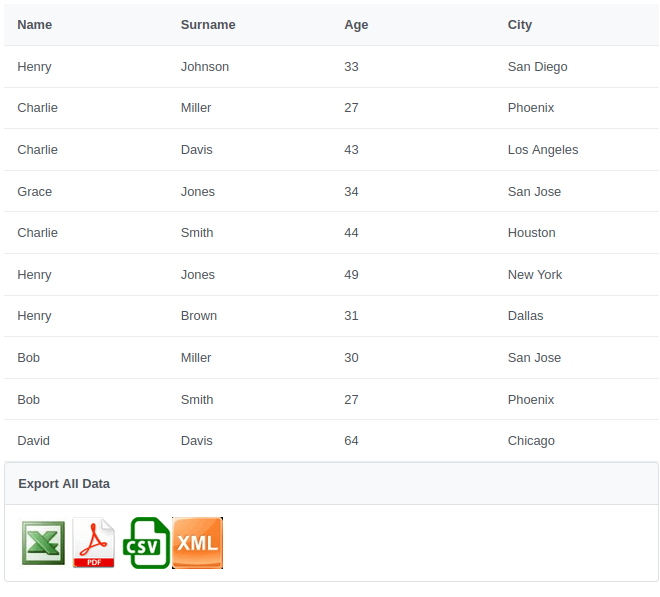
As you can see this page contains:
- a dataTable with
id="mydata" - a panel with icons to export data in Excel, PDF, CSV or XML
The <p:dataExporter> specifies the type of export with the "type" attribute. You can opt between "xlsx" (or the legacy "xls"), "pdf", "csv" and "xml". Next, you need to select the dataTable with the "target" attribute and the resulting filename with the "fileName" attribute. (In this tutorial we will show just Excel and PDF export, however using csv and xml is trivial — just add the required type attribute to the dataExporter.)
XLSX vs. the Legacy XLS Format
This tutorial originally used type="xls", which produces the legacy binary Excel 97-2003 format via Apache POI's HSSFWorkbook. That still works today, but for new projects we recommend type="xlsx" instead, which produces the modern Office Open XML format via POI's XSSFWorkbook — it's the format Excel itself has defaulted to for close to two decades now, supports larger sheets, and avoids the legacy XLS format's row/column limits. PrimeFaces DataExporter also supports type="xlsxstream", which uses POI's streaming SXSSFWorkbook under the hood and is worth switching to if you ever need to export very large datasets without loading the whole workbook into memory (pageOnly="true" already limits this for our small example, but it matters once you export full, unpaged datasets).
Coding the Backing Bean
Next, we will code the Backing Bean which will produce some random Person objects to populate the DataTable.
Additionally, an Excel or PDF dataExporter can use the preProcessor or postProcessor to add pre-processing or post-processing functionality to your document. This allows you to add custom styles to your document or also to modify the content as well.
@Named(value = "manager")
@ViewScoped
public class PropertyManager implements Serializable {

    private String name;
    private String surname;
    private int age;
    private String city;

    List<Person> cacheList = new ArrayList<>();

    @PostConstruct
    public void init() {
        cacheList = generateRandomPeople();
    }

    public void clear() {
        cacheList.clear();
    }

    public List<Person> generateRandomPeople() {
        List<Person> people = new ArrayList<>();
        String[] names = {"Alice", "Bob", "Charlie", "David", "Emma", "Frank", "Grace", "Henry", "Isabel", "Jack"};
        String[] surnames = {"Smith", "Johnson", "Williams", "Brown", "Jones", "Miller", "Davis", "Garcia", "Martinez", "Lee"};
        String[] cities = {"New York", "Los Angeles", "Chicago", "Houston", "Phoenix", "Philadelphia", "San Antonio", "San Diego", "Dallas", "San Jose"};

        Random random = new Random();
        for (int i = 0; i < 10; i++) {
            String name = names[random.nextInt(names.length)];
            String surname = surnames[random.nextInt(surnames.length)];
            int age = 18 + random.nextInt(50); // Random age between 18 and 67
            String city = cities[random.nextInt(cities.length)];

            Person person = new Person(name, surname, age, city);
            people.add(person);
        }
        return people;
    }

    // Modern XLSX post-processor: works on the OOXML API (XSSFWorkbook),
    // used together with type="xlsx" in the dataExporter above.
    public void postProcessXLSX(Object document) {
        DataFormatter formatter = new DataFormatter(Locale.US);
        XSSFWorkbook wb = (XSSFWorkbook) document;
        XSSFSheet sheet = wb.getSheetAt(0);
        CellStyle style = wb.createCellStyle();
        style.setFillForegroundColor(IndexedColors.AQUA.getIndex());
        style.setFillPattern(FillPatternType.SOLID_FOREGROUND);

        for (Row row : sheet) {
            for (Cell cell : row) {
                if (cell.getCellType() == CellType.STRING) {
                    cell.setCellValue(cell.getStringCellValue().toUpperCase());
                    cell.setCellStyle(style);
                }
            }
        }
    }

    // Legacy XLS post-processor (type="xls"), kept for reference if you're
    // still exporting the binary Excel 97-2003 format via HSSFWorkbook.
    public void postProcessXLS(Object document) {
        DataFormatter formatter = new DataFormatter(Locale.US);
        HSSFWorkbook wb = (HSSFWorkbook) document;
        HSSFSheet sheet = wb.getSheetAt(0);
        CellStyle style = wb.createCellStyle();
        style.setFillBackgroundColor(IndexedColors.AQUA.getIndex());

        for (Row row : sheet) {
            for (Cell cell : row) {
                if (cell.getCellType() == CellType.STRING) {
                    cell.setCellValue(cell.getStringCellValue().toUpperCase());
                    cell.setCellStyle(style);
                }
            }
        }
    }

    // getters/setters omitted for brevity
}
As you can see, within postProcessXLSX (or the legacy postProcessXLS) we are iterating over the list of Rows and Cells of the Spreadsheet, then checking the Cell type to apply an uppercase transformation if the Cell contains a String.
Note: the switch-on-enum snippet from the original tutorial (switch (cell.getCellType()) { case STRING: ... }) relied on an older POI API shape; the if (cell.getCellType() == CellType.STRING) form above works consistently across current POI 5.x releases and avoids relying on a switch statement over an enum that has gained new constants over the years.
Deploying the Application
Once you deploy the application on a Container such as WildFly, you will be able to see the list of Person objects in the upper dataTable and the icons to export the data:
Exporting Only the Current Page
By default dataExporter works on the whole dataset; if you'd like to export only the data displayed on the current page (as we did in our example), set the pageOnly attribute to true.
<p:dataExporter type="xml" target="mydata" fileName="mydata.xml" pageOnly="true" />Production Readiness: Large Exports and Kubernetes/OpenShift
A small, ten-row demo table behaves the same everywhere, but a few things are worth checking before you let users export large, unpaged datasets in production:
- Prefer
type="xlsxstream"for large exports. It uses Apache POI's streamingSXSSFWorkbook, which flushes rows to disk/response incrementally instead of holding the entire workbook in heap memory — important if a user can trigger an export of an unpaged dataset with tens of thousands of rows. - Watch heap sizing on containerized WildFly. A spike in concurrent large exports is a classic, easy-to-miss source of heap pressure in a container with tight memory limits; size your JVM heap (and, if relevant, review any custom Metaspace/GC tuning) with worst-case concurrent export load in mind, not just steady-state traffic.
- Exports are generated per-request and streamed to the response — DataExporter doesn't write temp files to local disk, which is exactly what you want on Kubernetes/OpenShift, where the container filesystem is ephemeral and typically not sized for large temporary files.
- Review your Content-Security-Policy if you've enabled CSP headers on WildFly (a good practice PrimeFaces itself has supported since version 8.0): make sure your CSP configuration doesn't inadvertently block the download of the generated file in browsers that enforce stricter navigation policies.
Conclusion
In conclusion, this tutorial has equipped you with the essential knowledge to seamlessly export PrimeFaces DataTable content into various file formats, empowering users to efficiently manipulate and share tabular data.
Understanding the step-by-step export process for each file format — Excel (XLSX and legacy XLS), PDF, CSV, and XML — ensures a comprehensive grasp of the mechanisms involved. You've gained insights into configuring and utilizing PrimeFaces components, enabling swift and accurate data exportation with minimal effort, along with when to reach for streaming exports as your datasets grow.
Source code: Jakarta EE 10 version: https://github.com/fmarchioni/mastertheboss/tree/master/web/primefaces/export-datatable-jakartaee
Source code: Jakarta EE 8 version (legacy reference): https://github.com/fmarchioni/mastertheboss/tree/master/web/primefaces/export-datatable
Frequently Asked Questions
Should I use type="xls" or type="xlsx" for Excel export in PrimeFaces?
Use type="xlsx" for any new project. It produces the modern Office Open XML format via POI's XSSFWorkbook, supports much larger sheets than the legacy binary XLS format, and is what Excel itself has defaulted to for years. Use type="xlsxstream" instead if you're exporting very large, unpaged datasets and want to avoid holding the whole workbook in memory.
Does PrimeFaces PDF export use iText?
Not the original iText library. PrimeFaces' PDF export uses OpenPDF (com.github.librepdf:openpdf), the permissively-licensed (LGPL/MPL) fork of iText 2, created after iText 5+ moved to the AGPL license. If your project still depends on com.lowagie:itext or com.itextpdf:itextpdf, migrate to OpenPDF.
Do I need the "jakarta" classifier on the PrimeFaces dependency?
Yes, for any project using the jakarta.* namespace (Jakarta EE 9 and newer, which includes current WildFly releases). Omitting the classifier pulls in PrimeFaces' legacy build targeting the old javax.faces.* APIs, which will not work correctly alongside a Jakarta Faces 4.x runtime.
Why does my exported Excel or PDF file come out empty?
The most common causes are: the target attribute on <p:dataExporter> not matching the dataTable's id, the dataExporter being placed outside the same <h:form> as the dataTable, or pageOnly="true" being set while the current page happens to be empty (e.g. after a filter with no matches).
Can I export only selected rows instead of the whole page or dataset?
Yes — bind the dataTable's selection attribute to a managed bean property and reference it from your export logic (or use a preProcessor to filter the workbook/document content to just the selected rows) rather than relying solely on pageOnly.
Is it safe to let users export very large tables in production?
It can put real memory pressure on your server if you don't plan for it. Prefer type="xlsxstream" (Apache POI's streaming SXSSFWorkbook) for large or unpaged exports, and make sure your container's JVM heap sizing accounts for worst-case concurrent export load, not just typical traffic.
Does exporting a PrimeFaces dataTable write temporary files to disk?
No — DataExporter streams the generated file directly to the HTTP response rather than writing it to local disk first, which is exactly the behavior you want on Kubernetes/OpenShift, where container filesystems are ephemeral and not meant for large temporary files.
What's the difference between preProcessor and postProcessor on a dataExporter?
Both let you hook into the generated document (Workbook, PDF document, etc.) with a managed bean method, but preProcessor runs before PrimeFaces populates the document with your dataTable's data, while postProcessor runs after — which is why styling/uppercasing existing cell values, as in this article's example, is done in a postProcessor.
Recommended Articles
Developing Applications with MongoDB and PrimeFaces on WildFly: A Step-by-Step Guide
Learn how to build a data-driven application using MongoDB, PrimeFaces, and WildFly. Get started with this tutorial and export/import data from MongoDB using a PrimFaces datatable.
Easily Set Up and Deploy Web Applications with PrimeFaces 15.0.15 on WildFly
Learn how to set up, design, and deploy a web application using PrimeFaces 15.0.15 and WildFly in this tutorial.
Populate dataTable with natively JSON data using PrimeFaces
Learn how to display JSON data in a JSF dataTable using PrimeFaces, including examples and best practices.
Master PrimeFaces DataTable with JSF in Minutes - Version 15.0.15
Learn how to use Primefaces DataTable in minutes, including setting up a Web project and coding both the view and backing bean.