Using the ExecuteSQL Service task in jBPM Processes
ExecuteSQL is a Service Task that can be used to execute SQL queries directly from a jBPM process. In this tutorial we will learn how to install and configure it using the jBPM Business Central and then we will create a sample Project to test it.
To run this tutorial, you need a jBPM environment with the Business Central deployed on a Kie Server. You can check this tutorials if you need to get started with it:
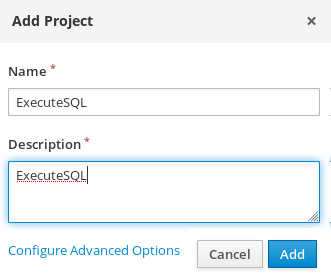
Assumed that you have your Business Central up and running, go ahead and create a new Project in your Space:
Within your project, we need to enable the
ExecuteSQL Custom Task. As a matter of fact, only a limited set of Custom Tasks are installed. To Install a new Custom Task, click on the top-right Wheel (whose label is “Admin”):

Then, Choose “Custom Task Administration“
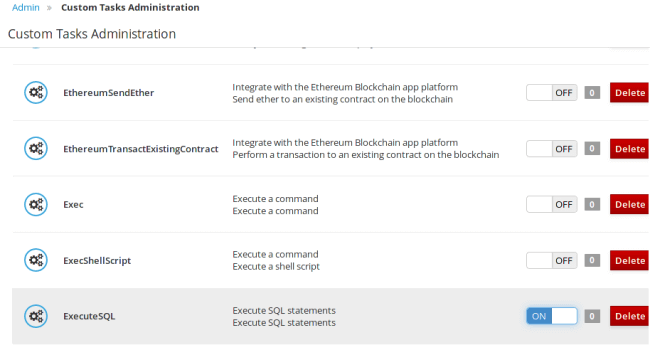
From the following window, find the ExecuteSQL Custom Task and Enable it:
Now that the ExecuteSQL Task has been enabled, you need to include it in your Project. From your Project Dashboard, click on Settings:

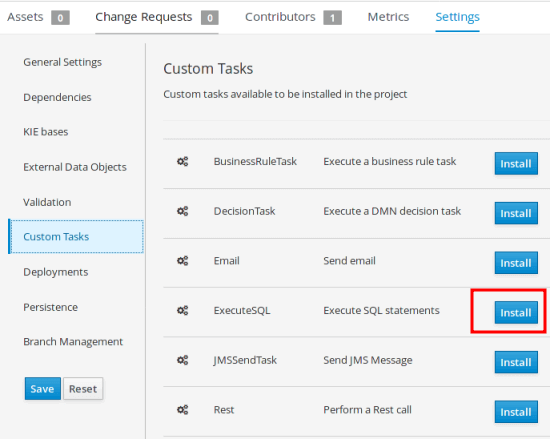
From the next window, you will see the list of Custom Tasks which have been enabled and thus can be included in your project. Click on “Install” near the “ExecuteSQL”:
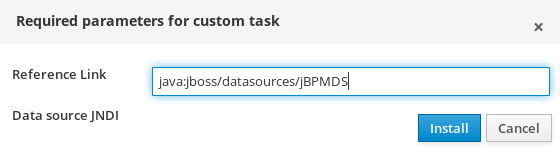
You will be prompted to enter the DataSource JNDI used to run the SQL Statements. We will add the default Datasource from our configuration which is “java:/jboss/datasources/jBPMDS“:
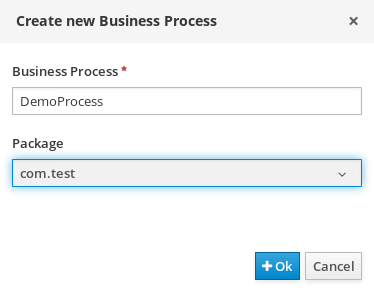
Now it’s time to add some assets! First off, build your current process from the Dashboard. Then, add a new Business Process:
Next, from the Process Designer, design a Process which includes the ExecuteSQL and a Script Task.
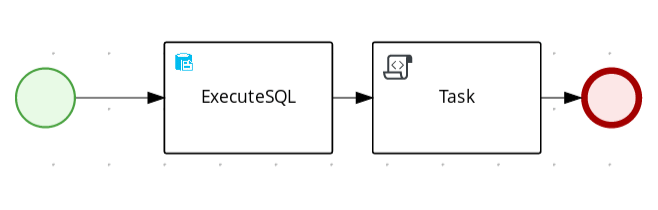
Please note that you will find the ExecuteSQL Task in the “Custom Task” Palette, provided that you have built your project.
Within the ExecuteSQL Properties, we will add as Input Parameter the SQL Statement we want to execute. In our case, we will query the current time with “SELECT NOW()“.
The returned resultset will we assigned to a Process variable named “output“.
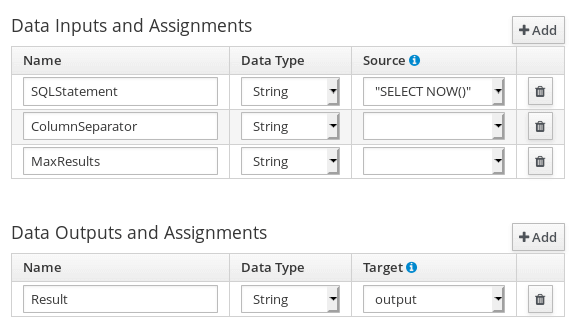
Please note that you need to define first the Process variable “output” (as Object) before setting the Input/Output matrix.
Within the Script Task, we will print the value of the “output” variable:
System.out.println(kcontext.getVariable("output"));Save your process and Deploy it on your Kie Server.
Before running the Process let’s see which assets have been added to our Project:
- DemoProcess (src/main/resources/com/test/DemoProcess.bpmn): This is the BPMN file containing the Process
- WorkDefinitions (global/WorkDefinitions.wid) : This is the Workitem definition for the default WIH (such as BusinessRuleTaskHandler, DecisionTaskHandler, EmailWorkItemHandler etc)
- ExecuteSQL (global/ExecuteSQL.wid): This is the Workitem definition file for the ExecuteSQL WIH. Here is the content of this file:
[
        [
            "name" : "ExecuteSQL",
            "displayName" : "ExecuteSQL",
            "category" : "execute-sql-workitem",
            "description" : "",
            "defaultHandler" : "mvel: new org.jbpm.process.workitem.executesql.ExecuteSqlWorkItemHandler(\"dataSourceName\")",
            "documentation" : "execute-sql-workitem/index.html",

            "parameters" : [
                                "MaxResults" : new StringDataType()
                ,"ColumnSeparator" : new StringDataType()
                ,"SQLStatement" : new StringDataType()

            ],
            "results" : [
                                "Result" : new StringDataType()

            ],
            "mavenDependencies" : [
                                 "org.jbpm.contrib:execute-sql-workitem:7.57.0.Final"

            ],
            "icon" : "ExecuteSQL.png"

        ]

]
Once deployed, from the Manage Process Instances Menu you can start a new Process Instance of your BPMN:

You will see from the Business Console logs that the Script Task printed the Time function from the “SELECT NOW()” SQL Statement:
14:21:00,700 INFO [stdout] (default task-20) [2021-08-06 14:21:00.694]That’s it. We have covered how to install a Custom Task in a jBPM Project and how to use it in a sample Process Definition.
To learn more about the ExecuteSQL WIH, you can checkout the source code of it on GitHub:
https://github.com/kiegroup/jbpm-work-items/blob/main/execute-sql-workitem/src/main/java/org/jbpm/process/workitem/executesql/ExecuteSqlWorkItemHandler.java
Recommended Articles
Enhance Your Enterprise Java Processes with Human Task Management in jBPM
Master human task management in jBPM for efficient process execution and stakeholder engagement. #jBPM #Java #ProcessManagement
Enhance Your jBPM Business Processes with Custom Java Actions Using Service Tasks
Learn how to use jBPM Service Tasks for executing custom Java actions. #jBPM #Java #ServiceTask #Middleware #CloudNative
Installing jBPM Business Central on WildFly 19: A Step-by-Step Guide
Learn how to install jBPM Business Central on WildFly 19 and access the Business Console. Follow this tutorial to set up the Kie Server, Business Central Workbench, and other required components.
Getting Started with jBPM Business Central on WildFly 31
Learn how to install jBPM Business Central and Kie Execution Server on WildFly for a full-featured environment. Design, deploy, and manage your Kie assets with the Drools Workbench!