Ho to access WildFly Admin Console
Here is WildFly Admin Console:
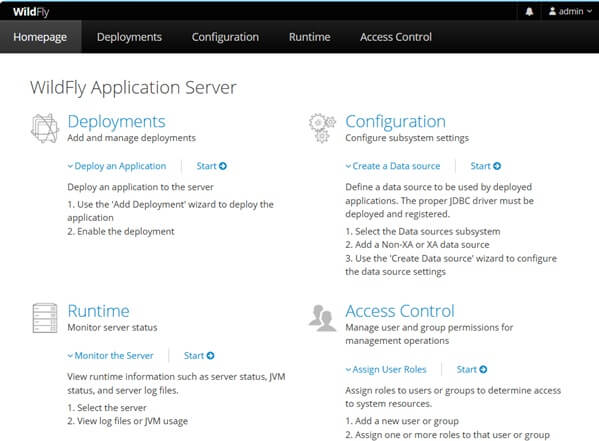
The WildFly Admin Console (HAL) talks to the management HTTP interface on port 9990 (HTTP) or 9993 (HTTPS), in both Standalone and Domain mode. Getting past a blank login page or a silent 401 almost always comes down to one of three things: the Elytron security realm the console is authenticating against, the network interface the management socket is bound to, or — in front of a reverse proxy — a missing forwarding/CORS header. This guide walks through all three, plus the production-hardening steps (native TLS, mTLS, container network isolation) you need before this interface is reachable from anywhere but your own workstation.
Default Ports and Socket Bindings
The management interface is defined independently of the application HTTP listeners, with its own socket bindings:
<interface name="management">
    <inet-address value="${jboss.bind.address.management:127.0.0.1}"/>
</interface>

<!-- HTTP -->
<socket-binding name="management-http"
                interface="management"
                port="${jboss.management.http.port:9990}"/>

<!-- HTTPS -->
<socket-binding name="management-https"
                interface="management"
                port="${jboss.management.https.port:9993}"/>
Confirm the interface actually came up by checking the boot log for WFLYSRV0051:
INFO [org.jboss.as] (Controller Boot Thread) WFLYSRV0051: Admin console listening on http://127.0.0.1:9990If this line is missing, look for a preceding Address already in use or WFLYCTL...: Failed to resolve interface error rather than assuming a browser-side problem — those two are the actual causes in the overwhelming majority of cases. To bind on a different address, see How to bind WildFly to an IP address.
Creating a Management User with the Correct Role (Elytron)
Current WildFly releases authenticate the management interface through the Elytron subsystem, not the legacy security subsystem. add-user.sh still writes credentials to mgmt-users.properties and role assignments to mgmt-groups.properties under $JBOSS_HOME/standalone/configuration (or domain/configuration) — but those property files are now consumed by an Elytron properties-realm, which is in turn wired to the http-interface through a security-domain and an http-authentication-factory. Understanding that chain is what actually gets you unstuck when authentication fails.
$ ./add-user.sh

What type of user do you wish to add?
 a) Management User (mgmt-users.properties)
 b) Application User (application-users.properties)
(a): a

Enter the details of the new user to add.
Using realm 'ManagementRealm' as discovered from the existing property files.
Username : admin123
Password :
Re-enter Password :
What groups do you want this user to belong to? (Please enter a comma separated list, or leave blank for none)[  ]: SuperUser
Non-interactively, with an explicit role (recommended for provisioning scripts, images, and Ansible/Helm-driven installs):
./add-user.sh -m -u administrator1 -p 'P@ssw0rd-2026!' -g SuperUserDo not default every account to SuperUser. WildFly's RBAC ships with seven standard roles — Monitor, Operator, Maintainer, Deployer, Auditor, Administrator, and SuperUser — with strictly increasing privilege. A CI/CD service account that only needs to redeploy an application should be granted Deployer, not SuperUser; an account used purely for dashboards/monitoring should be Monitor. Assigning the minimum role is the single highest-value change most teams skip.
Diagnosing HTTP 401 Unauthorized
A 401 from the HAL console is an authentication failure raised by the Elytron http-authentication-factory attached to the http-interface — not a network or CORS problem (those surface as connection resets or 403s, covered further down). Read the live wiring before touching any config file:
$JBOSS_HOME/bin/jboss-cli.sh -c --command="/core-service=management/management-interface=http-interface:read-resource"
$JBOSS_HOME/bin/jboss-cli.sh -c --command="/subsystem=elytron/http-authentication-factory=management-http-authentication:read-resource(recursive=true)"
Three root causes account for nearly every 401 on this interface:
- Realm mismatch. The user was added against one
properties-realm(e.g. a customLDAPRealm) while thesecurity-domainfeedingmanagement-http-authenticationstill points atManagementRealm. Check thesecurity-domain'srealmreference against whereadd-user.shactually wrote the credentials. - Mechanism mismatch. The default HTTP authentication mechanism is DIGEST. A client that only speaks Basic auth (some older automation scripts, or a misconfigured reverse proxy stripping the
WWW-Authenticatechallenge) will fail with 401 even with correct credentials. Confirm the active mechanism from theread-resourceoutput above, undermechanism-configurations. - Stale or duplicated credentials. Running
add-user.shagainst the wrongstandalone/configurationdirectory (common in multi-instance or containerized setups whereJBOSS_HOMEresolves differently at build time vs. runtime) silently writes to a properties file the running server never reads.
When the root cause still isn't obvious, enable TRACE logging on the Elytron and management-security loggers and reproduce the login attempt — this is far more reliable than guessing from the browser's network tab:
$JBOSS_HOME/bin/jboss-cli.sh -c --command="/subsystem=logging/logger=org.wildfly.security:add(level=TRACE)"
$JBOSS_HOME/bin/jboss-cli.sh -c --command="/subsystem=logging/logger=org.jboss.as.domain.management.security:add(level=TRACE)"
Remove both loggers once diagnosed — TRACE on the security subsystem is verbose and not something to leave running in production. For LDAP-backed realms specifically, see How to debug WildFly security issues.
Cloud-Native Security: the Real Cost of Binding to 0.0.0.0
In a container, -Djboss.bind.address.management=0.0.0.0 is often reached for reflexively just to make the console reachable at all — but the management interface is not a read-only dashboard. Anyone who authenticates against it can deploy arbitrary applications, rewrite datasource credentials, or reconfigure logging to exfiltrate data: functionally, an authenticated session on 9990/9993 is equivalent to shell access on the server. Binding it to 0.0.0.0 inside a pod network with no further controls means every other workload in the same namespace (and, depending on your CNI's default policy, potentially the whole cluster) can reach it.
- Restrict access with a Kubernetes
NetworkPolicy(or the equivalent OpenShiftNetworkPolicy/EgressFirewall) that allows ingress to ports 9990/9993 only from a specific bastion pod, operator, or CI runner — never from0.0.0.0/0or even the full cluster CIDR. - Do not create a
Serviceof typeLoadBalanceror a publicIngress/Routefor the management port. Reach it viakubectl port-forward, a bastion host, or an internal-only Route with client-certificate enforcement (covered below). - If your cloud provider's security groups are the actual enforcement boundary (VM-based deployments, not Kubernetes), scope the rule to the specific CIDR of your operations network, not the VPC's full private range.
Enforcing Native HTTPS on Port 9993
Without HTTPS, DIGEST-authenticated credentials are still transmitted in a form that's crackable offline if captured, and the entire management payload (deployment descriptors, datasource passwords in cleartext responses, etc.) crosses the wire unencrypted. The following Elytron CLI sequence generates a self-signed keystore, builds a server-ssl-context, and attaches it to the HTTP management interface — replace the self-signed pair with a CA-issued certificate for anything beyond a lab environment:
/subsystem=elytron/key-store=management-keystore:add(path=management.keystore, relative-to=jboss.server.config.dir, credential-reference={clear-text=changeit}, type=PKCS12)
/subsystem=elytron/key-store=management-keystore:generate-key-pair(alias=management, algorithm=RSA, key-size=2048, validity=365, credential-reference={clear-text=changeit}, distinguished-name="CN=management.azienda.local")
/subsystem=elytron/key-store=management-keystore:store()

/subsystem=elytron/key-manager=management-key-manager:add(key-store=management-keystore, credential-reference={clear-text=changeit})

/subsystem=elytron/server-ssl-context=management-ssl-context:add(key-manager=management-key-manager, protocols=["TLSv1.3","TLSv1.2"])

/core-service=management/management-interface=http-interface:write-attribute(name=ssl-context, value=management-ssl-context)
/core-service=management/management-interface=http-interface:write-attribute(name=secure-socket-binding, value=management-https)
reload
After the reload, the console is reachable at https://<host>:9993. Restricting protocols to TLSv1.2/1.3 explicitly is deliberate — it prevents a downgrade to a legacy protocol version even if the JDK's default security providers still technically offer one.
Reverse Proxy Integration and Undertow's Cross-Origin Check
Putting Nginx, HAProxy, or Apache HTTP Server in front of the management interface (to terminate TLS centrally, or to publish it under a friendlier hostname) breaks two things if you don't compensate for them explicitly:
- Undertow doesn't know it's behind a proxy. Without forwarding awareness, Undertow builds redirect URLs and reads client-address-dependent logic using the proxy's own address/scheme, not the original client's — which among other things breaks session/redirect behavior on some HAL flows. Enable
proxy-address-forwardingon the listener so Undertow honorsX-Forwarded-For/X-Forwarded-Proto/X-Forwarded-Host:
# Configure CLI for HAL access behind a TLS-terminating Reverse Proxy
/subsystem=undertow/server=default-server/http-listener=default:write-attribute(name=proxy-address-forwarding, value=true)- The management interface enforces its own Origin allow-list. Independent of standard browser CORS, WildFly's HTTP management interface checks the request's
Originheader against a server-sideallowed-originslist before it will process a HAL console request — a deliberate defense against DNS-rebinding/CSRF attacks that trick a browser into issuing authenticated management requests from an untrusted page. When you publish the console under a proxy hostname that differs from what WildFly expects, every request is rejected withWFLYDM0111even though authentication itself succeeds. Add the exact origin(s) the browser will actually use:
/core-service=management/management-interface=http-interface:write-attribute(name=allowed-origins, value=["https://management.azienda.local"])
reload
Both writes require a reload to take effect for the http-interface change; the Undertow listener attribute applies without a reload on most current releases, but reloading after both keeps the two settings from being applied out of order in a live diagnosis session.
Advanced: TLS-Terminating Nginx + Client-Certificate Enforcement (mTLS)
For environments that require certificate-based client authentication in addition to Elytron's user/password check, the certificate verification can happen at the proxy, at WildFly itself, or — carefully — at both. This is also where most "it worked with curl but fails in the browser with a handshake error" tickets originate, so the two layers are covered together.
1. Nginx: TLS termination and forwarding headers
server {
    listen 443 ssl;
    server_name management.azienda.local;

    ssl_certificate     /etc/nginx/certs/management.crt;
    ssl_certificate_key /etc/nginx/certs/management.key;
    ssl_protocols       TLSv1.2 TLSv1.3;

    location / {
        proxy_pass https://127.0.0.1:9993;
        proxy_ssl_verify        off;    # trust the internal upstream cert; do not disable on a shared network
        proxy_set_header Host              $host;
        proxy_set_header X-Forwarded-For   $proxy_add_x_forwarded_for;
        proxy_set_header X-Forwarded-Proto $scheme;
        proxy_set_header X-Forwarded-Port  $server_port;
    }
}
2. WildFly: requiring a client certificate on the management socket
/subsystem=elytron/key-store=management-truststore:add(path=management.truststore, relative-to=jboss.server.config.dir, credential-reference={clear-text=changeit}, type=PKCS12)

/subsystem=elytron/trust-manager=management-trust-manager:add(key-store=management-truststore)

/subsystem=elytron/server-ssl-context=management-ssl-context:write-attribute(name=trust-manager, value=management-trust-manager)
/subsystem=elytron/server-ssl-context=management-ssl-context:write-attribute(name=need-client-auth, value=true)
reload
3. Why this combination breaks the handshake — and the fix
The Nginx block above proxies to WildFly over HTTPS (proxy_pass https://127.0.0.1:9993), which is required the moment need-client-auth=true is set on management-ssl-context: Nginx is now the TLS client in that connection, and WildFly's trust-manager will refuse the handshake unless Nginx presents a certificate signed by a CA in management-truststore. If proxy_pass instead pointed at plain http://127.0.0.1:9990 (a very common copy-paste mistake when adding mTLS to an existing proxy config), there is no TLS session between Nginx and WildFly at all — the handshake requirement can never be satisfied, and WildFly resets the connection before Nginx ever gets a response to forward, which surfaces in the browser as a generic connection-reset or 502, not as an authentication error. To make the setup above actually work end-to-end, Nginx also needs an upstream client identity:
    location / {
        proxy_pass https://127.0.0.1:9993;
        proxy_ssl_certificate     /etc/nginx/certs/upstream-client.crt;
        proxy_ssl_certificate_key /etc/nginx/certs/upstream-client.key;
        ...
    }
The architecturally cleaner alternative — and the one worth defaulting to — is to terminate mTLS only at Nginx (ssl_verify_client on; against a client-CA bundle) and leave WildFly's own server-ssl-context without need-client-auth, relying on network isolation (the NetworkPolicy/security-group scoping above) for the Nginx-to-WildFly hop instead of a second certificate layer. Enforcing mTLS twice, once at the proxy and again at the application server, is what produces the confusing handshake failures described here — pick one layer as the actual trust boundary.
Further Hardening
For SSL/database-backed realm setups beyond what's covered here: Securing JBoss / WildFly Management Interfaces: the easy way. For centralized identity via OIDC/SSO: Securing WildFly Management Console with Keycloak.
Conclusion
Most "can't access the Admin Console" tickets are one of: the management interface not listening on the expected address, an Elytron realm/mechanism mismatch producing a 401, or a reverse proxy that isn't forwarding origin/scheme headers WildFly's CORS and redirect logic depend on. Diagnose in that order — network reachability, then Elytron authentication chain, then proxy headers — before reaching for browser-side fixes, and treat the management interface with the same network and certificate discipline you'd apply to SSH access to the host itself.
Recommended Articles
Disable WildFly Admin Console for Enhanced Security - Step-by-Step Guide
Learn how to securely disable the WildFly Admin Console. Expert guide with screenshots and commands.
Secure WildFly Management Console with Keycloak OpenID Connect in WildFly 29
Learn how to secure your WildFly Management Console using Keycloak OpenID Connect. Prerequisites and important updates included.
Preview of HAL.next: Next Major Version for WildFly Management Console
Discover the new features and latest GWT release in HAL.next, next major version of WildFly's management console. Learn how to use it.
Deploying Applications on WildFly using Web Console and CLI - A Step-by-Step Guide
Learn how to deploy applications on WildFly using the web console and command-line interface (CLI) for production environments.