How to check if an application is running on WildFly
The simplest way to check the status of an application running on JBoss / WildFly is to use the CLI tool and the deployment-info command. Let’s see how to do it.
Here’s an example: supposing you have deployed the helloworld.war application, launch the CLI and connect to the server:
$ bin/jboss-cli.sh -cThen, check the status of the helloworld.war application:
[standalone@localhost:9990 /] deployment-info --name=helloworld.war
NAME           RUNTIME-NAME   PERSISTENT ENABLED STATUS
helloworld.war helloworld.war true       true    OK
There can be three possible states:
- OK: indicates that the deploy is up and running.
- FAILED: indicates a dependency is missing or a service could not start.
- STOPPED: indicates that the deployment was not enabled or was manually stopped.
Checking application status from the Web console
Another option is to use the Web Console to check the application’s status. Create a management user and connect to the Web Console ( See the following tutorial to learn more: How to manage JBoss / WildFly remotely
Once connected to the Console, head to the Deployments tab and choose the application you want to check:
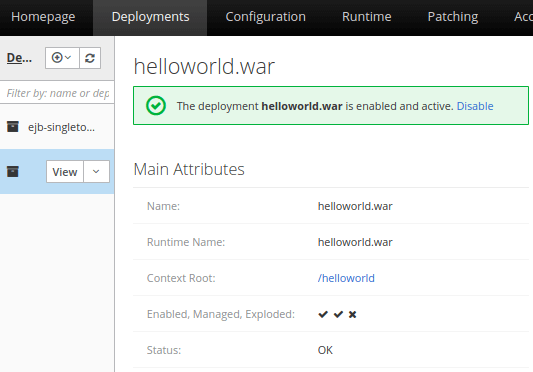
As you can see, the same Status code are reported in the Web console.
That’s it. We have covered two ways to check if an application is running on JBoss/WildFly. If you want to check the status of the application itself, we recommend the following article: How to check if JBoss is running?
JBoss AS 5
If you are still running JBoss AS 5, you can use the twiddle command line tool instead.
This is a two process step: at first you need to retrieve the deployment-id associated with your application:
twiddle -s localhost:1099 query jboss.web.deployment:*

jboss.web.deployment:war=invoker.war,id=1188245482
jboss.web.deployment:war=jbossmq-httpil.war,id=818328454
jboss.web.deployment:war=jmx-console.war,id=-742061087
jboss.web.deployment:war=jboss-seam-registration.war,id=209639553
jboss.web.deployment:war=jbossws-context.war,id=270573684
jboss.web.deployment:war=jboss-profiler.war,id=1640316612
jboss.web.deployment:war=jboss-seam-messages.war,id=-632397857
jboss.web.deployment:war=ROOT.war,id=1273039891
jboss.web.deployment:war=jboss-seam-numberguess.war,id=-1863357686
jboss.web.deployment:war=Gap.war,id=-1263613270
jboss.web.deployment:war=web-console.war,id=2121270277
Now feed this id to twiddle issuing a get request :
twiddle -s localhost:1099 get –noprefix “jboss.web.deployment:war=Gap.war,id=-1263613270” StateString
Started Notice that Unix users can use the magic “expansion” facility to get this just in one step:
./twiddle.sh -s 127.0.0.1:1099 get –noprefix `./twiddle.sh -s 127.0.0.1:1099 query jboss.web.deployment:* | grep war_name` StateStringRecommended Articles
Manage JBoss/WildFly Remotely with Web Console and CLI
Learn how to remotely manage your JBoss/WildFly application server with the Web Console, CLI, or external tools like VisualVM and JConsole.
Efficient Methods for Checking WildFly Server Status
Discover various methods to ensure your WildFly server is up and running. Learn how to check status using jps command or by examining $JBOSS_HOME/standalone/tmp folder.
Retrieve JVM Arguments for WildFly Servers Using CLI and Web Console - An Essential Guide
Discover various methods to retrieve JVM arguments for WildFly servers including CLI, Domain mode, and Management Console. #WildFly #Java #JVMArguments
Cluster Web Applications Using WildFly Application Server
Learn how to cluster a web application with WildFly and JBoss AS 5. Improve scalability and availability with our expert guide.