How to check JVM arguments from the CLI in WildFly
There are several options to collect JVM arguments of WildFly application server from the Command Line.
Firstly, if you want to check JVM arguments of a Java process, a simple way to do that is using the ‘jps‘ tool which is available in the ‘bin‘ folder of the JDK. Example:
jps -lvm
8239

-Djboss.server.base.dir=/home/jboss/wildfly-preview/standalone -D[Standalone] -Xms64m -Xmx512m -XX:MetaspaceSize=96M -XX:MaxMetaspaceSize=256m -Djava.net.preferIPv4Stack=true -Djboss.modules.system.pkgs=org.jboss.byteman -Djava.awt.headless=true --add-exports=java.base/sun.nio.ch=ALL-UNNAMED --add-exports=jdk.unsupported/sun.misc=ALL-UNNAMED --add-exports=jdk.unsupported/sun.reflect=ALL-UNNAMED -Dorg.jboss.boot.log.file=/home/francesco/jboss/wildfly-preview/standalone/log/server.log -Dlogging.configuration=file:/home/francesco/jboss/wildfly-preview/standalone/configuration/logging.properties
Also, you can use the jcmd command to get the same information:
jcmd pid VM.system_propertiesGet JVM Arguments from the CLI
If you are running WildFly on a remote machine, then you can get the remote JVM settings of your server with the Command Line Interface (CLI) . In order to do that, you can query the platform-mbean node to get the JVM start up arguments:
[standalone@localhost:9990 /]  /core-service=platform-mbean/type=runtime:read-attribute(name=input-arguments)
{
    "outcome" => "success",
    "result" => [
        "-D[Standalone]",
        "-Xms64m",
        "-Xmx512m",
        "-XX:MetaspaceSize=96M",
        "-XX:MaxMetaspaceSize=256m",
        "-Djava.net.preferIPv4Stack=true",
        "-Djboss.modules.system.pkgs=org.jboss.byteman",
        "-Djava.awt.headless=true",
        "--add-exports=java.base/sun.nio.ch=ALL-UNNAMED",
        "--add-exports=jdk.unsupported/sun.misc=ALL-UNNAMED",
        "--add-exports=jdk.unsupported/sun.reflect=ALL-UNNAMED",
        "-Dorg.jboss.boot.log.file=/home/francesco/jboss/wildfly-preview/standal
one/log/server.log",
        "-Dlogging.configuration=file:/home/francesco/jboss/wildfly-preview/stan
dalone/configuration/logging.properties"
    ]
}
On the other hand, if you are running JBoss / WildFly in Domain mode, then you can collect the JVM settings as follows:
/host=primary/server=server-one/core-service=platform-mbean/type=runtime:read-attribute(name=input-arguments)Make sure to replace the hostname and server name with your actual settings.
Get JVM Arguments from the Web Console
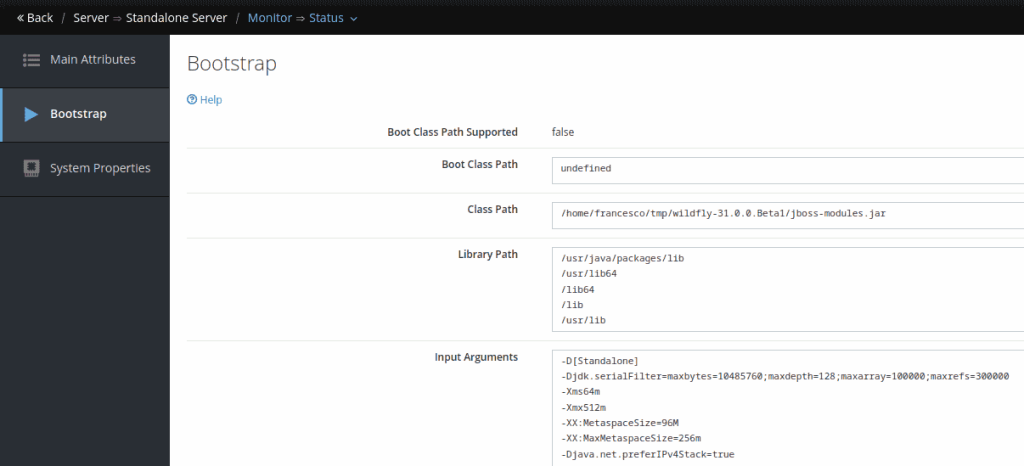
Finally, we will mention that it is also possible to get the JVM start up arguments from the Management Console by selecting the Runtime Tab and clicking on View in the Status Option.
From there, you will be able to see the JVM arguments of your WildFly Server:
Conclusion
In this article we have discussed how to get the JVM arguments in WildFLy either using the CLI and the Web management console.
Recommended Articles
Efficient WildFly Domain Management Using Web Console and Topology View
Mastering WildFly Domain Mode with ease using the Web Console and Topology view for centralized management. #WildFlyDomainMode #JavaDev #CloudNative
Manage JBoss/WildFly Remotely with Web Console and CLI
Learn how to remotely manage your JBoss/WildFly application server with the Web Console, CLI, or external tools like VisualVM and JConsole.
Check Application Status on JBoss/WildFly Using CLI and Web Console - Enterprise Java Tutorial
Learn how to check the status of an application deployed on JBoss/WildFly using CLI and Web Console. #WildFly #Java #EnterpriseJava #JBoss #DeploymentStatus
Create Advanced CLI Scripts Programmatically with Java - WildFly 8/9
Learn how to create advanced CLI scripts programmatically from Java using WildFly 8 or newer, including Domain resources like Hosts and Servers. #Java #WildFly #CLI #Middleware