Creating Quarkus applications using IntelliJ IDEA
Learn how to bootstrap, develop, and debug modern Quarkus 3.x applications using the JetBrains IntelliJ Quarkus Tools plugin. This updated guide covers Jakarta EE 10 migration (jakarta.*), default RESTEasy Reactive endpoints with SmallRye Mutiny, dynamic configuration property completion, and Qute template editing in IntelliJ IDEA.
This tutorial introduces you to the JetBrains IntelliJ Quarkus plugin (Quarkus Tools) which lets you bootstrap and develop modern Quarkus 3.x projects in the simplest and most productive way.
Today, there is a wealth of plugins available to develop applications with Quarkus (including Visual Studio Code, Eclipse, Eclipse Che, and IntelliJ IDEA). This article focuses on the IntelliJ Plugin for Quarkus, which offers the richest set of options available to develop code, manage extensions, and handle configuration in Quarkus 3.x.
Installing the Quarkus plugin
The Quarkus plugin for IntelliJ IDEA is available both for the Community version of the IDE and the Ultimate Edition. The source code for this plugin is available on GitHub at https://github.com/redhat-developer/intellij-quarkus. Currently, main contributions come from Red Hat, the creator and primary maintainer of Quarkus technology.
The simplest way to install it is through the File | Settings | Plugins option in the top menu (or IntelliJ IDEA | Settings | Plugins on macOS). Search for “quarkus” in the Marketplace tab:
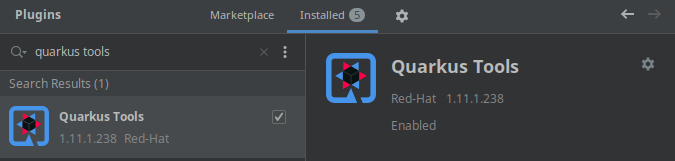
Click on “Install” and restart the IDE when prompted. Now choose to create a New Quarkus Project from the new project wizard:
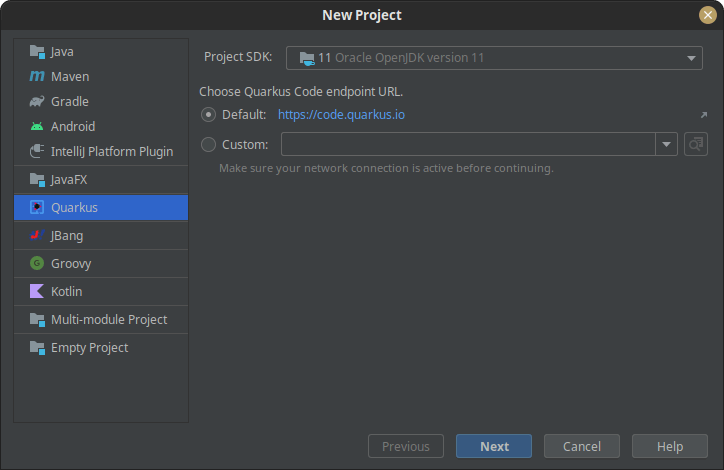
From the Wizard, you can choose the list of Quarkus 3.x extensions for your project, in much the same way you would using the online generator at https://code.quarkus.io:
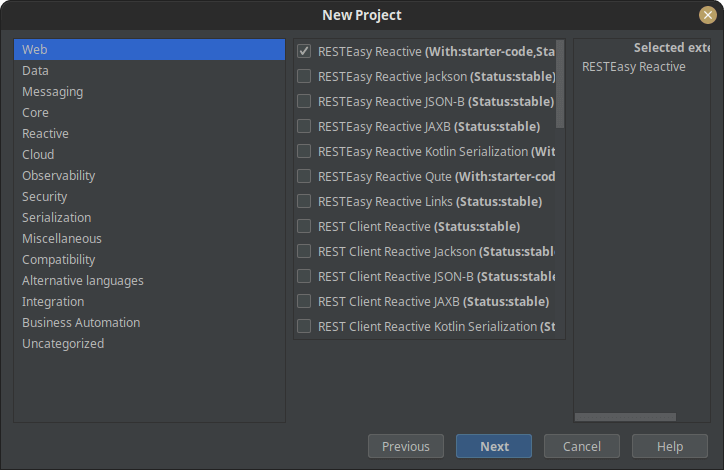
Finish by setting the project GAV (GroupId, ArtifactId, Version), Java version (Java 17 or Java 21 are recommended for Quarkus 3.x), build tool (Maven or Gradle), and project location.
Next, the project will open in your IDE. As an example, you will find an ExampleResource endpoint inside it. Note that with Quarkus 3.x, Java EE specs have fully migrated to Jakarta EE 10 (jakarta.* namespace), and RESTEasy Reactive is the standard, non-blocking REST engine supporting both synchronous responses and SmallRye Mutiny reactive streams (Uni/Multi):
package org.acme;

import jakarta.ws.rs.GET;
import jakarta.ws.rs.Path;
import jakarta.ws.rs.Produces;
import jakarta.ws.rs.core.MediaType;
import io.smallrye.mutiny.Uni;

@Path("/hello")
public class ExampleResource {

    @GET
    @Produces(MediaType.TEXT_PLAIN)
    public Uni<String> hello() {
        return Uni.createFrom().item("Hello Quarkus 3.x!");
    }
}
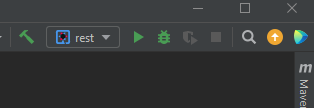
You can run/debug your Quarkus projects from the terminal (using quarkus dev or mvn quarkus:dev) or directly from the IntelliJ Tool Bar. To launch from the IDE, select the Run -> Edit Configurations… menu and click the Add new… link to add a Quarkus Run Configuration.
Next, the Run/Debug options will be available in the top right toolbar:
Top features in IntelliJ IDEA plugin
Besides project bootstrapping, there is a wealth of options available to speed up your code development and testing in Quarkus 3.x. Let’s look at the REST server and client capabilities.
REST Services & RESTEasy Reactive
One of my favourite features is CodeLenses. When running an application in Quarkus Dev Mode, CodeLenses automatically displays URL decorations above your GET endpoints:

Clicking on the CodeLens URL directly opens the live endpoint in your default web browser or built-in HTTP client tool.
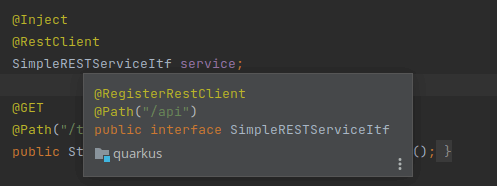
Furthermore, when developing MicroProfile REST Clients or Jakarta REST interfaces, your client references are checked against valid injection points. The following picture shows the reference for @RestClient SimpleRESTServiceItf:
Configuration hacks
Inside application.properties or application.yaml, you benefit from intelligent code auto-completion for all core and extension configuration keys in Quarkus 3.x:
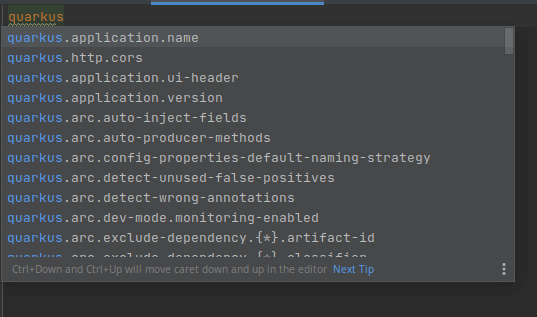
In addition, if you hover over any of these properties, you get instant documentation tooltips detailing default values, types, and descriptions.
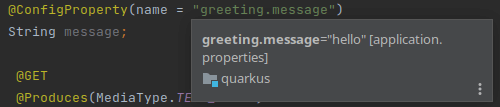
When working with custom application configuration, you can jump straight from a Java injection point—such as a Jakarta CDI bean using @ConfigProperty:

…directly to its definition in application.properties. This allows you to verify instantly if the property exists and is correctly populated:

Also, hovering over a property field in your Java class resolves its assigned value in a quick context tooltip:
Maven extensions management
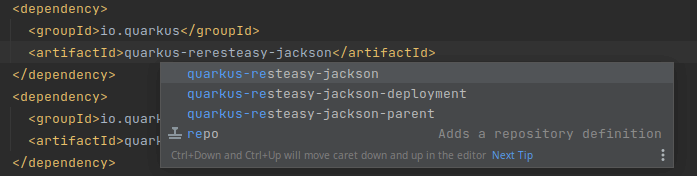
Besides standard shortcuts available for Maven projects, you can use completion helpers when managing extensions inside pom.xml. This makes adding official and community Quarkus extensions quick and straightforward without leaving the IDE editor:
Integration with Qute
If you are using the Qute template engine in your Quarkus application (see Qute: a Template Engine for Quarkus applications), there are several features designed to streamline template creation inside IntelliJ IDEA.
One extremely useful feature is navigation: any template attribute in your Java code includes controls to navigate directly to the target template file or generate a missing template automatically.
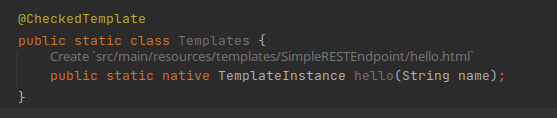
Within your Qute HTML or text template, you can declare Java parameter types at the top of the template file:
{@org.acme.Foo foo}This allows the plugin to validate object properties inside the template file and offer full code completion:
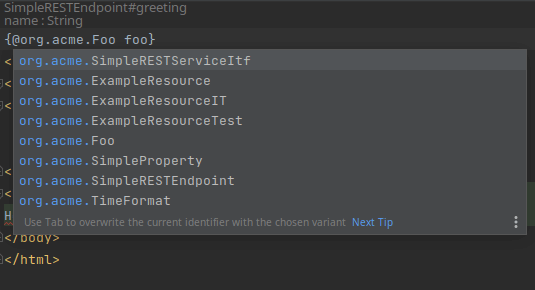
Alongside support for Java completion and expression validation, the extension supports type hovering for built-in and user-defined Java classes. To read more about the language server capabilities behind the plugin, check out this release announcement: https://quarkus.io/blog/intellij-quarkus-tools-1.11.0/.
Frequently Asked Questions (FAQs)
How do I update an existing Quarkus 2.x project to Quarkus 3.x in IntelliJ IDEA?
You can upgrade your project using the official Quarkus CLI command quarkus update from the IntelliJ terminal. This migration tool automatically updates your dependency versions in pom.xml or build.gradle and converts legacy javax.* packages to modern jakarta.* packages across your Java code.
Does the IntelliJ Quarkus plugin support RESTEasy Reactive and Mutiny?
Yes. RESTEasy Reactive is the default REST framework in Quarkus 3.x, and the IntelliJ plugin fully supports inspecting endpoints, resolving route paths, and navigation for reactive methods returning SmallRye Mutiny types such as Uni and Multi.
Can I use the Quarkus IntelliJ plugin with the free Community Edition?
Yes, the Quarkus Tools plugin is fully compatible with both IntelliJ IDEA Community Edition and Ultimate Edition. Core capabilities like project creation wizards, property autocompletion, dependency helpers, and Qute template navigation work in both versions.
Recommended Articles
Create Standalone Quarkus Applications and Powerful Scripts Using JBang & Quarkus Command Mode
Learn how to develop standalone Quarkus applications with JBang and powerful scripts using Quarkus Command Mode. #Quarkus #Java #Microservices #CloudNative
A Comprehensive Comparison of WildFly Application Server and Quarkus Framework in Enterprise Java
Explore the features and use cases of WildFly and Quarkus for robust Java applications. #WildFly #Quarkus #EnterpriseJava
Debug Quarkus Applications with IntelliJ IDEA and VS Studio - A Comprehensive Guide
Learn how to debug Quarkus applications using IntelliJ IDEA and Visual Studio. Explore setting breakpoints and attaching to debugger processes.
Configure Default Transaction Timeout in Quarkus - A Comprehensive Guide
Learn how to configure and manage default transaction timeouts in Quarkus applications. #Quarkus #Java #Middleware