JUnit 5: Using Custom DisplayNames for Tests
Expressive and descriptive test names significantly improve test report readability in build logs and IDE test runners. JUnit 5 provides the @DisplayName annotation alongside DisplayNameGenerator strategies to generate clean, human-readable test titles automatically. In this tutorial, you will explore built-in display name generators, custom generators, and emoji-enhanced test reporting in JUnit 5.
Prerequisites:
- Basic knowledge of JUnit 5 annotations.
- A Java project with JUnit 5 dependencies.
If you are new to JUnit 5 we recommend checking this article: JUnit 5 : Step-by-step Tutorial
Step 1: Understand @DisplayName Annotation
The @DisplayName annotation is used to provide a custom name for your test method. It enhances the readability of your tests by allowing you to use spaces, special characters, and Unicode characters in your test names. For example:
@Test
@DisplayName("Adding two numbers")
void add_two_numbers() {
	Calculator calculator = new Calculator();
	assertEquals(2, calculator.add(1, 1), "1 + 1 should equal 2");
}
As you can see, by running the above Test will use as display name “Adding two numbers”:
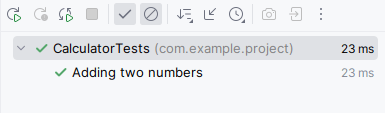
Besides, be aware the the DisplayName will take precedence over the following annotation we will discuss in the next sections.
Step 2: Explore Default DisplayNameGenerator
JUnit 5 comes with a default DisplayNameGenerator that automatically generates display names based on the method names. While this works well for most cases, there are scenarios where you may need more control.
Here are some default DisplayNameGenerator available in Jupiter:
| DisplayNameGenerator | Behavior |
|---|---|
Standard |
Matches the standard display name generation behavior in place since JUnit Jupiter 5.0 was released. |
Simple |
Removes trailing parentheses for methods with no parameters. |
ReplaceUnderscores |
Replaces underscores with spaces. |
IndicativeSentences |
Generates complete sentences by concatenating the names of the test and the enclosing classes. |
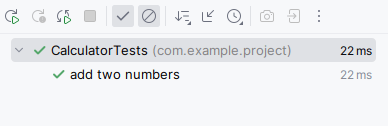
@DisplayNameGeneration(DisplayNameGenerator.ReplaceUnderscores.class)
class CalculatorTests {

	@Test
	void add_two_numbers() {
		Calculator calculator = new Calculator();
		assertEquals(2, calculator.add(1, 1), "1 + 1 should equal 2");
	}
}
This time the Test display name will be the following one:
Step 3: Create a Custom DisplayNameGenerator
To create a custom DisplayNameGenerator, implement the org.junit.jupiter.api.DisplayNameGenerator interface. This interface has the following methods which you need to override:
public class UppercaseDisplayNameGenerator implements DisplayNameGenerator {
    @Override
    public String generateDisplayNameForClass(Class<?> testClass) {
        return testClass.getSimpleName().toUpperCase();
    }

    @Override
    public String generateDisplayNameForNestedClass(Class<?> nestedClass) {
        return nestedClass.getSimpleName().toUpperCase();
    }

    @Override
    public String generateDisplayNameForMethod(Class<?> testClass, Method testMethod) {
        return testMethod.getName().toUpperCase();
    }
}
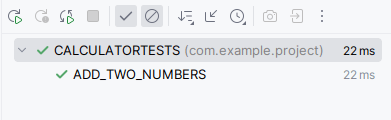
Our Custom UppercaseDisplayNameGenerator will transform to uppercase methods and classes in the Test Report.
Apply it as follows in your Class:
@DisplayNameGeneration(UppercaseDisplayNameGenerator.class)
class CalculatorTests {
}
Here is your Test Report:
Conclusion
In this tutorial, we explored the DisplayNameGenerator feature in JUnit 5, allowing us to create custom test names. By leveraging this capability, you can make your tests more descriptive, fostering better communication within your development team and making your test suite more maintainable in the long run.
Experiment with different display name strategies based on your project’s needs, and enjoy the benefits of cleaner and more informative test names. Happy testing!
Source code for this example: https://github.com/fmarchioni/mastertheboss/tree/master/test/junit5-namegeneration
Common Problems & Solutions
Problem: Custom @DisplayNameGeneration annotations do not apply to nested test classes.
Cause: Display name generators do not automatically inherit down nested test hierarchies unless explicitly configured or extended.
Solution: Override generateDisplayNameForNestedClass in your custom DisplayNameGenerator class or annotate nested classes directly.
Problem: @DisplayName text appears truncated or unreadable in CI HTML reports.
Cause: Special character encoding issues in Maven Surefire HTML plugin reports.
Solution: Ensure <project.build.sourceEncoding>UTF-8</project.build.sourceEncoding> is configured in your project pom.xml.
Recommended Articles
Beginner's Guide: Setting Up and Running Your First JUnit 5 Test in Java
Learn how to set up a JUnit 5 project and write your first test with this beginner-friendly guide. #JUnit5 #JavaTesting #CloudNative
JUnit 5: Comprehensive Guide to Asserting Exceptions in Tests
Learn how to assert exceptions in JUnit 5 and JUnit4 tests with examples. #JUnit #JavaTesting #CloudNative
How to Assert No Exception Thrown in Java with JUnit 4 and JUnit 5
Learn how to assert no exception thrown in Java tests using JUnit 4 and JUnit 5. #Java #JUnit #Testing #CloudNative
Unlock JUnit 5 Test Execution in Maven Projects - A Comprehensive Guide
Ensure your JUnit 5 tests run smoothly with this comprehensive guide to resolving common issues.