PrimeFaces Dialog Example
The PrimeFaces library offers powerful components to enrich Jakarta Server Faces (JSF) applications. One such component, the PrimeFaces dialog, enables the creation of dynamic, interactive dialog boxes. In this updated tutorial, we'll explore how to implement a PrimeFaces dialog within a Jakarta Faces application to enhance user interactions, using current PrimeFaces 15 and Jakarta Faces 4.1 namespaces and dependencies.
Prerequisites
Before diving in, ensure you have the following:
- Basic knowledge of JSF and PrimeFaces – You can learn the basics here: PrimeFaces Tutorial (2023)
- Java Development Kit (JDK) installed — JDK 17 or later, which is the current baseline for Jakarta EE 10/Faces 4.0+
- IDE (Integrated Development Environment) such as Eclipse or IntelliJ IDEA
- A JSF project configured with PrimeFaces (see the dependency notes below if you're starting from scratch)
Adding PrimeFaces and Jakarta Faces Dependencies
Since PrimeFaces 11, the project ships two separate artifact classifiers depending on whether your target runtime uses the legacy javax.faces.* APIs or the current jakarta.faces.* APIs (Jakarta EE 9+). For any new project, you want the jakarta classifier:
<dependency>
    <groupId>org.primefaces</groupId>
    <artifactId>primefaces</artifactId>
    <version>15.0.6</version>
    <classifier>jakarta</classifier>
</dependency>
If you're deploying to WildFly (which already bundles a Jakarta Faces implementation), you typically don't need to add a separate Faces implementation dependency — just make sure your pom.xml doesn't also pull in a conflicting one with compile scope. If you're running on a plain Servlet container (Tomcat, Jetty) instead of a full Jakarta EE server, you'll additionally need a Faces implementation such as Mojarra or MyFaces built for Jakarta Faces 4.x.
Step 1: Setting Up the JSF Page
Start by creating an XHTML page within your JSF project. Use the following code snippet as a template for your JSF page (index.xhtml):
<!DOCTYPE html>
<html xmlns="http://www.w3.org/1999/xhtml" xmlns:h="jakarta.faces.html"
    xmlns:f="jakarta.faces.core" xmlns:jsf="jakarta.faces"
    xmlns:ui="jakarta.faces.facelets" xmlns:p="primefaces">

<f:view contentType="text/html;charset=UTF-8" encoding="UTF-8">
    <h:head>

    </h:head>
    <h:body>

        <h2>Primefaces Dialog Demo</h2>
        <h:form>

            <p:toast id="messages" showDetail="true" />

            <p:commandButton value="Show Dialog" type="button" icon="pi pi-external-link" onclick="PF('dlg1').show()" />

            <p:dialog header="Dialog example" widgetVar="dlg1" minHeight="40" width="350" showEffect="fade">
                <p class="m-0">This tutorial shows how to run a Primefaces Dialog which includes a button in it</p>
                <f:facet name="footer">
                    <p:commandButton action="#{buttonView.action1}" update="messages" value="Yes" icon="ui-icon-check"
                        style="width: auto" />
                    <p:commandButton action="#{buttonView.action2}" update="messages" value="No" icon="ui-icon-check"
                        style="width: auto" />
                </f:facet>
            </p:dialog>

        </h:form>
    </h:body>
</f:view>

</html>
Breaking change: old javax.faces namespaces are gone
Older PrimeFaces/JSF tutorials (including earlier versions of this article) use namespaces like xmlns:h="http://xmlns.jcp.org/jsf/html" and xmlns:p="http://primefaces.org/ui". Since the migration to Jakarta EE 9+ (Jakarta Faces, formerly JSF), the package and namespace convention changed from javax.faces.*/full URLs to the short jakarta.faces.* form shown above, and PrimeFaces itself moved to the bare primefaces namespace. Mixing old and new namespaces in the same page will not work — pick the set that matches your PrimeFaces artifact classifier (jakarta vs the legacy javax.faces build) and Faces implementation version.
We've also replaced the deprecated <p:growl> component with <p:toast>, its modern successor — growl has been deprecated in PrimeFaces for several major versions now and may be removed in a future release, while <p:toast> is a drop-in replacement with the same purpose (showing transient notification messages) and better rendering under the hood.
Step 2: Understanding the Code
- The
<p:commandButton>triggers the display of the dialog usingonclick="PF('dlg1').show()". <p:dialog>defines the dialog box with a header, content, and footer.- Inside the dialog, two
<p:commandButton>elements represent 'Yes' and 'No' actions. These buttons call methods defined in thebuttonViewmanaged bean. <p:toast id="messages">replaces the deprecated<p:growl>and is updated (update="messages") whenever a button posts a FacesMessage, so the notification appears without a full page refresh.
Step 3: Backend Implementation (Managed Bean)
Create a managed bean with the action1 and action2 methods to handle 'Yes' and 'No' button actions, respectively.
@Named("buttonView")
@ViewScoped
public class BackingBean implements Serializable {

    public void addMessage(FacesMessage.Severity severity, String summary, String detail) {
        FacesContext.getCurrentInstance()
                .addMessage(null, new FacesMessage(severity, summary, detail));
    }

    public void action1() {
        addMessage(FacesMessage.SEVERITY_INFO, "Info Message", "Clicked Yes!");
    }

    public void action2() {
        System.out.println("Clicked No!");
        addMessage(FacesMessage.SEVERITY_INFO, "Info Message", "Clicked No!");
    }

}
Note: the @Named and @ViewScoped annotations above are the CDI-based ones (jakarta.inject.Named and jakarta.faces.view.ViewScoped), which have been the recommended combination for managed beans for a long time now — avoid the older javax.faces.bean.ManagedBean/javax.faces.bean.ViewScoped annotations, which were deprecated years ago and are not part of Jakarta Faces 4.x at all.
Step 4: Testing the Primefaces Dialog
The index.html page will show a button that allows opening the Primefaces Dialog:
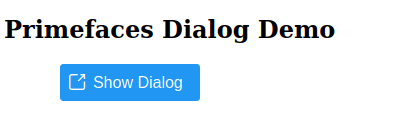
Click on the Show Dialog Button and your Dialog with the Button will show up:
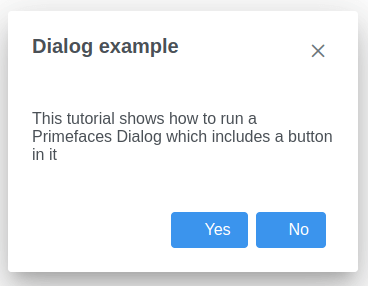
Finally, notice that clicking on the Buttons in the Dialog will trigger toast messages via the <p:toast> component.
Modal Dialogs
In order to make the Dialog Modal, you need to set the modal attribute to true:
<p:dialog header="Header" widgetVar="dlg2" minHeight="40" width="350" showEffect="fade" modal="true">
    <p class="m-0">Text here</p>
</p:dialog>
Minimize and Maximize Icon in Dialogs
Finally, you can set the attributes minimizable="true" and maximizable="true" to allow showing the minimize and maximize icons in your Primefaces Dialog:
<p:dialog header="Header" widgetVar="dlg4" minHeight="40" width="350" showEffect="fade" minimizable="true" maximizable="true">

</p:dialog>
Deploying PrimeFaces Dialogs in Production and on Kubernetes/OpenShift
A dialog demo works the same locally as it does in production, but a few things are worth checking before you ship a Jakarta Faces + PrimeFaces application at scale:
- Session affinity (sticky sessions): Jakarta Faces keeps view state tied to the HTTP session by default. If you run multiple WildFly replicas behind a Kubernetes Service or OpenShift Route without session affinity (or without distributed session replication via Infinispan), users can lose dialog/view state mid-interaction when a request lands on a different pod.
- Client-side state saving (
jakarta.faces.STATE_SAVING_METHOD=client) removes the need for server affinity entirely, at the cost of a larger, encrypted view-state payload sent to the browser on every request — a reasonable trade-off for stateless, horizontally-scaled deployments. - CDN or a caching reverse proxy for static PrimeFaces resources (theme CSS, component JS) reduces load on your WildFly pods for assets that rarely change between deployments.
- Enable HTTP/2 on your Ingress/Route in front of WildFly — PrimeFaces pages tend to load many small CSS/JS resources per component, and HTTP/2 multiplexing meaningfully cuts down the round trips compared to HTTP/1.1.
Conclusion
This tutorial outlines the implementation of a PrimeFaces dialog within a Jakarta Faces application, providing a user-friendly way to interact with users via pop-up dialog boxes, updated for current PrimeFaces 15 and Jakarta Faces 4.1 namespaces and components. Customize the dialog's content and actions according to your application's requirements for an enhanced user experience.
Source code: https://github.com/fmarchioni/mastertheboss/tree/master/web/primefaces/dialog-primefaces
Frequently Asked Questions
Which PrimeFaces artifact should I use for a new Jakarta EE project?
Use the jakarta classifier (e.g. org.primefaces:primefaces:15.0.6:jakarta). PrimeFaces publishes a separate classifier for projects still on the legacy javax.faces.* APIs, but any new project targeting Jakarta EE 9+ should use the jakarta build.
Why doesn't my old PrimeFaces XHTML page work after upgrading to Jakarta Faces?
The most common cause is mismatched namespaces: pages written for the legacy JSF stack use xmlns:h="http://xmlns.jcp.org/jsf/html" and xmlns:p="http://primefaces.org/ui", while Jakarta Faces 4.x expects the short forms shown in this article (jakarta.faces.html, primefaces, etc.). Update every namespace declaration in the page, not just the PrimeFaces one.
Is p:growl still usable in current PrimeFaces?
It still exists but has been deprecated for several PrimeFaces major versions in favor of <p:toast>, which serves the same purpose (transient notification messages) with a modernized implementation. New projects should use <p:toast> directly.
Do I need to add a Jakarta Faces implementation dependency separately?
Not if you're deploying to a full Jakarta EE application server like WildFly, which already bundles a Faces implementation. You only need to add one explicitly (Mojarra or MyFaces, built for Jakarta Faces 4.x) if you're deploying to a plain Servlet container such as Tomcat or Jetty.
How do I show a dialog without a full page refresh in PrimeFaces?
Use a plain (non-Ajax) button with type="button" and onclick="PF('widgetVar').show()", exactly as shown in this article's p:commandButton example — this calls the client-side PrimeFaces widget API directly and never triggers a server round trip just to open the dialog.
How can I make the dialog modal so users can't interact with the page behind it?
Add modal="true" to the <p:dialog> tag, as shown in the "Modal Dialogs" section above. This dims and disables the rest of the page until the dialog is closed.
Does horizontal scaling on Kubernetes affect PrimeFaces dialogs or view state?
It can, if your Faces view state relies on server-side session affinity and you scale WildFly across multiple pods without sticky sessions or session replication. Either configure session affinity at the Ingress/Route level, enable distributed session replication, or switch to client-side state saving to make the application fully stateless across replicas.
Can I use PrimeFaces dialogs together with CDI-scoped beans like @ViewScoped?
Yes — the example in this article uses @Named + jakarta.faces.view.ViewScoped, which is the current recommended combination and works naturally with PrimeFaces dialogs, since the dialog's Ajax-updated content and the backing bean's view-scoped state stay in sync across partial page updates.
Recommended Articles
Easily Set Up and Deploy Web Applications with PrimeFaces 15.0.15 on WildFly
Learn how to set up, design, and deploy a web application using PrimeFaces 15.0.15 and WildFly in this tutorial.
Extend PrimeFaces Components with Custom Analog Clock Using Java and PrimeFaces Extensions
Learn how to create a custom analog clock component using PrimeFaces base classes, extending the functionality of PrimeFaces Extensions.
Create and Deploy Jakarta EE 11 Application with WildFly Bootable JAR Using PrimeFaces
Learn how to create a Jakarta EE 11 application using WildFly Bootable JAR and PrimeFaces. Includes rich UI components, themes, and Ajax support.
Step-by-Step Guide: Uploading Files with PrimeFaces 15.0.15
Learn how to upload files using PrimeFaces version 15.0.15 in a Java EE environment, including setup and advanced file handling.