Primefaces TabView example
The PrimeFaces tabView component offers an intuitive way to present multiple content sections, making it ideal for showcasing distinct product categories within an application. In this tutorial, we'll leverage the tabView component to display three different product categories, each represented by a separate tab, and we'll wire it to a CDI backing bean as required by Jakarta EE 11 / Jakarta Faces 4.1.
Firstly, if you are new to Primefaces, we recommend checking this article to get started: PrimeFaces Tutorial (2023)
Setting Up a TabView example
Step 1: Implementing the TabView
In general terms, implementing a TabView with Primefaces is straightforward: you just create a top tabView element and tab children for it:
<p:tabView>

    <p:tab title="Tab 1">
        Content for Tab 1
    </p:tab>
    <p:tab title="Tab 2">
        Content for Tab 2
    </p:tab>

</p:tabView>
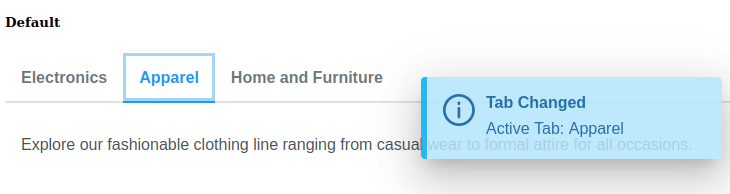
For example, the following index.xhtml page contains a TabView with three tabs. It also captures event such as Tab Change or Tab Close :
<html xmlns="http://www.w3.org/1999/xhtml" xmlns:h="http://java.sun.com/jsf/html" xmlns:f="http://java.sun.com/jsf/core"
   xmlns:p="http://primefaces.org/ui">
   <h:head>
   </h:head>
   <h:body>
      <div class="card">
         <h:form id="form">
            <p:growl id="msgs" showDetail="true" skipDetailIfEqualsSummary="true"/>
            <div class="card">
               <h5 class="mt-0">Default</h5>
               <p:tabView>
                  <p:ajax event="tabChange" listener="#{itemView.onTabChange}" update=":form:msgs"/>
                  <p:ajax event="tabClose" listener="#{itemView.onTabClose}" update=":form:msgs"/>
                  <f:facet name="actions">
                     Global actions
                  </f:facet>
                  <p:tab title="Electronics">
                     <p class="m-0">
                        Displaying our latest collection of cutting-edge electronics including smartphones, laptops, and smart devices.
                        <!-- Insert detailed information about the Electronics category -->
                     </p>
                  </p:tab>
                  <p:tab title="Apparel">
                     <p class="m-0">
                        Explore our fashionable clothing line ranging from casual wear to formal attire for all occasions.
                        <!-- Insert detailed information about the Apparel category -->
                     </p>
                  </p:tab>
                  <p:tab title="Home and Furniture">
                     <p class="m-0">
                        Discover elegant home decor and versatile furniture pieces that complement your lifestyle.
                        <!-- Insert detailed information about the Home & Furniture category -->
                     </p>
                  </p:tab>
               </p:tabView>
            </div>
         </h:form>
      </div>
   </h:body>
</html>
Step 2: Adding the Backing Beans (Jakarta EE 11)
Since Jakarta Faces 4.1 (the Faces specification shipped with Jakarta EE 11), classic JSF-style @ManagedBean beans are no longer part of the picture: every backing bean must be a plain CDI bean, using annotations from jakarta.enterprise.context and jakarta.inject instead of jakarta.faces.bean.*. This was already best practice before, but on Jakarta EE 11 it's the only supported way. Make sure your project has an (even empty) WEB-INF/beans.xml so CDI bean discovery is enabled.
Let's add the following ItemView CDI bean, which captures the events onTabChange and onTabClose displaying messages:
import jakarta.enterprise.context.RequestScoped;
import jakarta.faces.application.FacesMessage;
import jakarta.faces.context.FacesContext;
import jakarta.inject.Named;
import org.primefaces.event.TabChangeEvent;
import org.primefaces.event.TabCloseEvent;

@Named
@RequestScoped
public class ItemView {

    public void onTabChange(TabChangeEvent event) {
        FacesMessage msg = new FacesMessage("Tab Changed", "Active Tab: " + event.getTab().getTitle());
        FacesContext.getCurrentInstance().addMessage(null, msg);
    }

    public void onTabClose(TabCloseEvent event) {
        FacesMessage msg = new FacesMessage("Tab Closed", "Closed tab: " + event.getTab().getTitle());
        FacesContext.getCurrentInstance().addMessage(null, msg);
    }

    private void showMessage(String clientId) {
        FacesContext.getCurrentInstance()
                .addMessage(null,
                        new FacesMessage(FacesMessage.SEVERITY_INFO, clientId + " multiview state has been cleared out", null));
    }
}
What changed vs. older JSF tutorials: the imports move from javax.faces.* to jakarta.faces.*, and there's no more @RequestScoped coming from jakarta.faces.bean — it now comes from CDI's jakarta.enterprise.context. As a side effect, you also get full CDI capabilities on this bean (interceptors, events, @Inject of other beans, and — new in Faces 4.1 — the ability to inject the current navigation Flow directly with @Inject Flow currentFlow, without going through FacesContext).
Step 3: Test the TabView
Here is our example TabView when we deploy the Web application:
Step 4: Testing PrimeFaces TabView Quickly with JBang (No Maven Project)
If you just want to try out a PrimeFaces component in isolation — without scaffolding a full Maven/WAR project — you can spin up a minimal embedded server with JBang. The idea: one launcher class that boots an embedded Undertow servlet container with Mojarra (Faces) and Weld (CDI), a small backing bean class referenced with //SOURCES, and the index.xhtml page copied into place with //FILES.
Project layout (all files sit next to each other, no pom.xml needed):
TabViewDemo.java     // launcher, run this with jbang
ItemView.java         // the CDI backing bean from Step 2
index.xhtml           // the page from Step 1
beans.xml // empty CDI marker fileTabViewDemo.java:
///usr/bin/env jbang "$0" "$@" ; exit $?
//DEPS io.undertow:undertow-servlet:2.3.18.Final
//DEPS org.glassfish:jakarta.faces:4.1.0
//DEPS org.jboss.weld.servlet:weld-servlet-shaded:5.1.2.Final
//DEPS org.primefaces:primefaces:14.0.9
//DEPS jakarta.servlet:jakarta.servlet-api:6.1.0
//FILES webapp/index.xhtml=index.xhtml
//FILES webapp/WEB-INF/beans.xml=beans.xml
//SOURCES ItemView.java

import io.undertow.Undertow;
import io.undertow.server.handlers.resource.FileResourceManager;
import io.undertow.servlet.Servlets;
import io.undertow.servlet.api.DeploymentInfo;
import io.undertow.servlet.api.DeploymentManager;
import io.undertow.servlet.api.ListenerInfo;
import io.undertow.servlet.api.ServletContainer;
import io.undertow.servlet.handlers.DefaultServlet;

import com.sun.faces.config.ConfigureListener;
import org.jboss.weld.environment.servlet.Listener;

import java.io.File;

public class TabViewDemo {

    public static void main(String[] args) throws Exception {

        File webRoot = new File("webapp");

        DeploymentInfo servletBuilder = Servlets.deployment()
                .setClassLoader(TabViewDemo.class.getClassLoader())
                .setContextPath("/")
                .setDeploymentName("tabview-demo.war")
                .setResourceManager(new FileResourceManager(webRoot, 1024))
                .addListener(new ListenerInfo(Listener.class))          // CDI (Weld)
                .addListener(new ListenerInfo(ConfigureListener.class)) // Mojarra (Faces)
                .addServlets(
                        Servlets.servlet("FacesServlet", jakarta.faces.webapp.FacesServlet.class)
                                .addMapping("*.xhtml")
                                .setLoadOnStartup(1),
                        Servlets.servlet("Default", DefaultServlet.class)
                                .addMapping("/*")
                );

        ServletContainer container = Servlets.defaultContainer();
        DeploymentManager manager = container.addDeployment(servletBuilder);
        manager.deploy();

        Undertow server = Undertow.builder()
                .addHttpListener(8080, "localhost")
                .setHandler(manager.start())
                .build();

        server.start();

        System.out.println("PrimeFaces TabView demo running at http://localhost:8080/index.xhtml");
    }
}
ItemView.java is exactly the CDI bean from Step 2 (same package-less class, saved as its own file so JBang can pick it up via //SOURCES), and index.xhtml is the page from Step 1. beans.xml can be an empty file — its presence is what tells CDI to scan for beans.
Run it with:
jbang TabViewDemo.javaand open http://localhost:8080/index.xhtml to interact with the TabView, including the tabChange/tabClose growl messages handled by the CDI bean.
Notes on this approach:
- This is a playground, not a production setup: no security, no connection pooling, no clustering. It exists purely to test a single PrimeFaces component fast, without waiting for a full WildFly deploy cycle.
- Pin the
//DEPSversions to whatever is current when you try this — Undertow, Mojarra, Weld and PrimeFaces all ship frequent point releases. - The same skeleton (launcher +
//SOURCES+//FILES) can be reused for any other PrimeFaces component showcase by swapping onlyItemView.javaandindex.xhtml— worth keeping as a template for future component tutorials on the site.
Conclusion
The PrimeFaces tabView component serves as an efficient and visually appealing solution for organizing and presenting various product categories within an application. Customize each tab to showcase detailed information about different product offerings, enhancing user engagement and navigation. On Jakarta EE 11, remember that the backing bean must be a CDI bean — there's no fallback to the old JSF managed-bean model anymore.
Source code: https://github.com/fmarchioni/mastertheboss/tree/master/web/primefaces/tabview
Recommended Articles
Master PrimeFaces DataTable with JSF in Minutes - Version 15.0.15
Learn how to use Primefaces DataTable in minutes, including setting up a Web project and coding both the view and backing bean.
PrimeFaces Dialog Example (PrimeFaces 15 & Jakarta Faces 4.1)
PrimeFaces Dialog example updated for PrimeFaces 15 and Jakarta Faces 4.1: modern jakarta.faces namespaces, the Toast component replacing the deprecated Growl, modal/minimizable dialogs, and production deployment notes for WildFly.
Create and Deploy Jakarta EE 11 Application with WildFly Bootable JAR Using PrimeFaces
Learn how to create a Jakarta EE 11 application using WildFly Bootable JAR and PrimeFaces. Includes rich UI components, themes, and Ajax support.
Step-by-Step Guide: Uploading Files with PrimeFaces 15.0.15
Learn how to upload files using PrimeFaces version 15.0.15 in a Java EE environment, including setup and advanced file handling.