Using SAML with Keycloak
In this tutorial, we'll explore how to integrate SAML (Security Assertion Markup Language) with Keycloak. SAML 2.0 is a widely-used authentication protocol that exchanges XML documents between authentication servers and applications. In this article we will create a Keycloak SAML Client and then we will provision a WildFly Application Server which will be able to authenticate using the SAML Galleon feature pack, updated for Keycloak 26.7 and current WildFly releases.
What is SAML?
SAML 2.0 is similar to OIDC (OpenID Connect) but is considered more mature. It operates by exchanging XML documents between parties involved in authentication. XML signatures and encryption are utilized for verifying requests and responses.
SAML Use Cases:
- Application Authentication: An application requests the Keycloak server to authenticate a user. Upon successful authentication, the application receives an XML document containing a SAML assertion specifying user attributes.
- Client Accessing Remote Services: Clients can request a SAML assertion from Keycloak to invoke remote services on behalf of the user.
SAML Bindings Supported by Keycloak:
Keycloak supports three binding types for SAML:
- Redirect Binding: This method uses a series of browser redirects with encoded information in the URL. While convenient, it's less secure because the response is visible in logs.
- POST Binding: This is the recommended approach. It uses POST requests to exchange XML documents between Keycloak and the application, offering better security as the data resides within the request body.
- ECP Binding (Enhanced Client/Proxy): This advanced binding allows SAML attribute exchange outside a web browser, ideal for REST or SOAP-based clients.
Keycloak Server SAML URI Endpoints:
Keycloak has one endpoint for all SAML requests:
http(s)://authserver.host/realms/{realm-name}/protocol/samlAll SAML bindings use this endpoint. To see it in action, we will now bootstrap Keycloak and import a Realm which already contains a SAML Client.
Configuring SAML with Keycloak
Firstly, start Keycloak and bind it to port 8180 to avoid conflict with the port of WildFly (8080). For this purpose, you can either download it or boot it from a Docker image.
For example, if you want to start a local Keycloak server, you can start it as follows in Development Mode:
./kc.sh start-dev --http-port=8180On the other hand, if you want to start it as a Docker image, you can run it as follows:
docker run --name keycloak --rm \
  -e KC_BOOTSTRAP_ADMIN_USERNAME=admin \
  -e KC_BOOTSTRAP_ADMIN_PASSWORD=admin \
  --network=host \
  quay.io/keycloak/keycloak \
  start-dev \
  --http-port=8180
Note: since Keycloak 26, the bootstrap admin variables are KC_BOOTSTRAP_ADMIN_USERNAME and KC_BOOTSTRAP_ADMIN_PASSWORD; the older KEYCLOAK_ADMIN/KEYCLOAK_ADMIN_PASSWORD variables have been removed. More info about using Keycloak as a Docker Image is available here: How to run Keycloak with Docker
Then, we will import a Realm which contains a SAML Client so that we can check the key settings of it.
Download the following example realm from the Keycloak Quickstart Directory: realm-import.json (browse the full folder here: https://github.com/keycloak/keycloak-quickstarts/tree/main/jakarta/servlet-saml-service-provider/config).
Then, log into the Keycloak Admin Console (http://localhost:8180) and choose the Create Realm button:
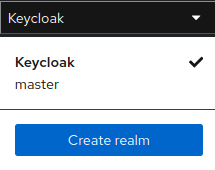
Then, import the quickstart Realm from the realm-import.json file.
Configuring the SAML Client
You should find a Keycloak Client whose name is servlet-saml-service-provider. Let's see how this Client was created:
Firstly, you need to create a new Client and choose a name and, as Client type, SAML:
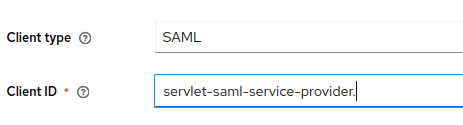
Then, enter in the Home URL and in the Valid redirect URIs the application server path combined with the Web Context of your application. Since our Web context will be "servlet-saml-service-provider", you will use the following settings:
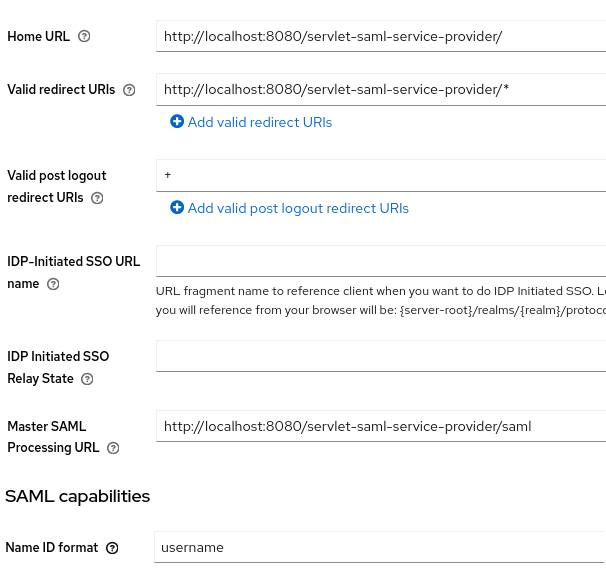
The Master SAML Processing URL will be used for every binding to both the SP's Assertion Consumer and Single Logout Services.
Finally, the Name ID format should be set to username, which will let you use the username as the name ID format for the subject.
Adding Users and Roles
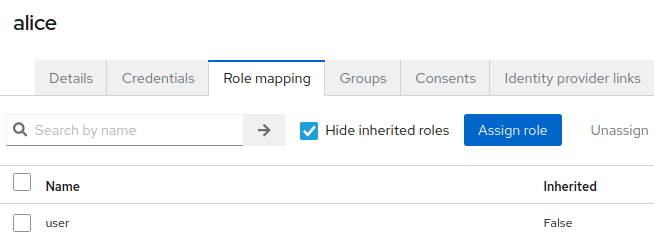
To test SAML Authentication, the quickstart Realm also contains a username "alice":
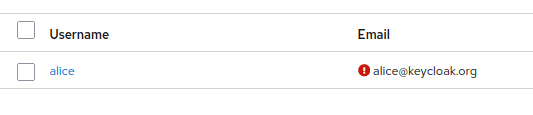
The user "alice" belongs to the "user" Role as you can see from the Role Binding Tab:
Download the Keycloak SAML Adapter XML
The last step will be downloading the Keycloak SAML XML Adapter descriptor, which needs to be installed in our WildFly application. To download it, select again the servlet-saml-service-provider Client. Choose the Keys Tab and then, from the top right corner, choose as Action:
- Export. This will download the servlet-saml-service-provider.json containing the Private Key to include in the XML Adapter.
- Download the SAML Adapter Keycloak XML file.

Before installing the XML Adapter on WildFly, you need to apply a couple of customizations to it:
- Include the
logoutPage, which will be index.jsp. - Include the
PrivateKeyPem. You can obtain the PrivateKeyPem from the servlet-saml-service-provider.json file.
Here is how the keycloak-saml.xml file looks in our example:
<keycloak-saml-adapter>
    <SP entityID="servlet-saml-service-provider"
        sslPolicy="EXTERNAL"
        logoutPage="/index.jsp">
        <Keys>
            <Key signing="true">
                <PrivateKeyPem>
                    MIIEogIBAAKCAQEAyA5Xt9aS81498elxZUHBiA8gRXXmEoXA8n/tdwzBk0qMMnt+3iRM+gq9ngkZkQC6QFuO85wmQXSBpxGCMOCn2k671jNmGLgwnAPPFkQSQu7vPZIP5ugkS4/xkIBFyqWIUuNDmTdXCkWgBn2Qw5l6R/yh05uYHrH8Rw6l9kMS051+kNdHDZLWrD9sqluNyopLPu7U70L5mv4PDy/TsltVs/itiv/wF+ru8VwHfSB/xgQj2efrNHszBHOsHa7gfgKuwsu/YGYs8aS4AS1gSgWGefy8ji3hd/2gh55YCwkuvArcsKevwqkmE76OQsG77cQvLqYcafc+RRd8asA7BUs/PQIDAQABAoIBAELnMQSk+L30zWiCdk6zn+I9lMBF/mxBWNaAW8zNckssyhfz3uixYSDZyLH6PxeUE7WEKRllJhILwXQ60bxA1UGXxQ+MXt9zcaYrS+0ZVLYXq+B+YV0KU2EFwXZev3hWxXFa2Xd631vrDuo8wdX4FMHQRdo7lbLmOQUWbAAgTEKCOIKxHtZYqb+J3BK4g347SzYvKpvqXhavIpVRQm5vLYPrge1gE83jo9ag2uAHCHpeToaH1Bohp7/tu6MWCnKiL9GBY5Me/PLmY5nADLaGspndYVCaxJbRQyfX0KlKqqlj2LBlVZS9ojhnyZLxymrvNmtqrcrMoJPE15jF4v/sc40CgYEA7w567TMXAJDF9QwaHZ4ZJeQL365mtRiiQQpLok2eVIqlr/C4i7SqCs5C8QoA9by9I2Usa5EFEgKsme+W98pkNy1ynkYKDuzo57PMkNzHmsqLaqCsfY/zqdodrSVLoA9+nI82TCR7YKcZDpgpMa35mVdYQzbZIYWxnCpkfRGd6yMCgYEA1jw5XKa7zBtE0QByNpGV1zUVkl2qJZcrp6fA4syp5VxhC0IpYg1Qu6ZL0lSvYLfGGQiURLAXQAv1EtkTRv1ol3l859DxFrI4GWuNhH1zE6kuomT4zwhQTa8dZsCmuP3WdJKsOUaDwFTOf0u2Ik7o/zzmOpjiYsdk5vjeVPVsgh8CgYALdRE1Lx6qG0YxkWvrAXnJFB3xkYVApraYEWtAkyHEgYShYxMlNvpzXCFfNhCHto0GFkJDwYaRr2kgU5hTtfKJpnb42PiAcKBVAowKYVp7s7ts19iMiAqwmFCVzNTMDhIOZNrAWXtETZ3o0igfRmxRChuj1QwhDCxQBMQeLmr4KwKBgE3M4Sf8hQbCgGNGPjQC+t+Er6jPyxKLq5bfHPVAThK1Uai9BjpNi5wZ8D8Z8fa1xoMg0nd/W3Iu5XlKy+1j6a/YtruY7XTIlAbnQCV1SW1Ca2UeNh05b7BGf+7o16Mmy9LZ0SGbsg0Ov08LN8GN1p+ahiGRk+U7dDFM/7Dqz9URAoGAZZTcUxCT5SdkI0alHDBevpOsn7r04sTpH7xhlZACMlUsL3Lo6ZfedSoEJGLqM2ZODFxRHMvaI5fhI7dToLDctkyic1oPi/wM/lVl+XlnrE/PgPCQIuLIN+BfLCVWuqQL9nfbmkerKUK+W0irZTNSg3QYFBMKEA03GXt0gtvGaYE=
                </PrivateKeyPem>
                <CertificatePem>
                    MIICrzCCAZcCBgFbFRHPvjANBgkqhkiG9w0BAQsFADAbMRkwFwYDVQQDDBBhcHAtcHJvZmlsZS1zYW1sMB4XDTE3MDMyODEzMTcyMFoXDTI3MDMyODEzMTkwMFowGzEZMBcGA1UEAwwQYXBwLXByb2ZpbGUtc2FtbDCCASIwDQYJKoZIhvcNAQEBBQADggEPADCCAQoCggEBAMgOV7fWkvNePfHpcWVBwYgPIEV15hKFwPJ/7XcMwZNKjDJ7ft4kTPoKvZ4JGZEAukBbjvOcJkF0gacRgjDgp9pOu9YzZhi4MJwDzxZEEkLu7z2SD+boJEuP8ZCARcqliFLjQ5k3VwpFoAZ9kMOZekf8odObmB6x/EcOpfZDEtOdfpDXRw2S1qw/bKpbjcqKSz7u1O9C+Zr+Dw8v07JbVbP4rYr/8Bfq7vFcB30gf8YEI9nn6zR7MwRzrB2u4H4CrsLLv2BmLPGkuAEtYEoFhnn8vI4t4Xf9oIeeWAsJLrwK3LCnr8KpJhO+jkLBu+3ELy6mHGn3PkUXfGrAOwVLPz0CAwEAATANBgkqhkiG9w0BAQsFAAOCAQEABQMerrVDcvqaN+d2Fps7qTglLv2kJKSE/6qyisNUry2oDxIX8xnFVPZJRd1np6lwwbBSUK7vf9I1OWOxLTuI8Qa2b+0bEBYrqb00O2L9V5UUEE5/M1BbHKt4EL1L/UXYipwFfD6g5t3w3yd5zDVj6Z7OFXeYpNZMmOF0eUWG9GKRg8lcHPHMm98s3hY0DE+YEJ2cg73MZyom7h2PEhUUt1YgIe63avml+1DBXs3TSUJTngGG7rJGdDV3ZEMV6e45S0aBM78G3Ll1GwM2kDp6sWOHon7YYXqjCohWQPIoypikVKavQj6LV8v9EjVJ3hvGfnNiYefxC1fkPfwJjrtzQw==
                </CertificatePem>
            </Key>
        </Keys>
        <IDP entityID="idp"
             signatureAlgorithm="RSA_SHA256"
             signatureCanonicalizationMethod="http://www.w3.org/2001/10/xml-exc-c14n#">
            <SingleSignOnService signRequest="true"
                                 validateResponseSignature="true"
                                 validateAssertionSignature="false"
                                 requestBinding="POST"
                                 bindingUrl="http://localhost:8180/realms/quickstart/protocol/saml"/>
            <SingleLogoutService signRequest="true"
                                 signResponse="true"
                                 validateRequestSignature="true"
                                 validateResponseSignature="true"
                                 requestBinding="POST"
                                 responseBinding="POST"
                                 postBindingUrl="http://localhost:8180/realms/quickstart/protocol/saml"
                                 redirectBindingUrl="http://localhost:8180/realms/quickstart/protocol/saml"/>
        </IDP>
    </SP>
</keycloak-saml-adapter>
Security note: the private key and certificate shown above are the public, well-known demo credentials that ship with the Keycloak quickstarts repository — never reuse them outside of local testing. In any real deployment, generate a dedicated signing keypair per application and treat the private key exactly like any other application secret (see the production notes near the end of this article).
Configuring a Sample Web Application to Use SAML
In order to configure a Web application to use SAML you need to provide the following elements:
Firstly, include in your WEB-INF folder the keycloak-saml.xml file patched with the information from the previous section:
├── src
│   ├── main
│   │   ├── java
│   │   │   └── org
│   │   │       └── keycloak
│   │   │           └── quickstart
│   │   │               └── profilejee
│   │   │                   └── Controller.java
│   │   └── webapp
│   │       ├── index.jsp
│   │       ├── profile.jsp
│   │       └── WEB-INF
│   │           ├── keycloak-saml.xml
│   │           └── web.xml
Then, in your web.xml, specify as authentication method KEYCLOAK-SAML and as security-role "user" (the only role available in our quickstart-saml domain):
<web-app
        xmlns="https://jakarta.ee/xml/ns/jakartaee"
        xmlns:xsi="http://www.w3.org/2001/XMLSchema-instance"
        xsi:schemaLocation="https://jakarta.ee/xml/ns/jakartaee https://jakarta.ee/xml/ns/jakartaee/web-app_6_0.xsd"
        version="6.0">
    <security-constraint>
        <web-resource-collection>
            <web-resource-name>app</web-resource-name>
            <url-pattern>/profile.jsp</url-pattern>
        </web-resource-collection>
        <auth-constraint>
            <role-name>user</role-name>
        </auth-constraint>
    </security-constraint>

    <login-config>
        <auth-method>KEYCLOAK-SAML</auth-method>
    </login-config>

    <security-role>
        <role-name>user</role-name>
    </security-role>
</web-app>
Configuring WildFly to Use Keycloak SAML
To secure applications running on WildFly with Keycloak SAML, you need the keycloak-saml-adapter-galleon-pack and the keycloak-client-saml layer. This feature pack automatically installs the Keycloak SAML adapter and the keycloak-saml subsystem in WildFly.
Not the same thing as the deprecated Keycloak client adapters
Keycloak's generic OIDC/SAML client adapters (the downloadable adapter ZIPs and JBoss CLI installers for various containers) were deprecated in Keycloak 19 and removed entirely by Keycloak 22. The SAML Galleon feature pack described here is a different, still actively maintained integration path, distributed and versioned by the Keycloak project specifically for WildFly and JBoss EAP (WildFly 29 or newer). Don't confuse the two: the standalone client adapters are gone for good, but WildFly's native SAML support via this Galleon feature pack is current and supported.
The authoritative, up-to-date reference for this integration is the official Keycloak documentation: Keycloak SAML Galleon feature pack for WildFly and EAP. However, since we can now use the amazing WildFly Glow to provision WildFly from a Web application, let's try this approach first, then look at the officially documented Maven plugin approach as an alternative.
Option 1: Auto-Provisioning with WildFly Glow
All you have to do is run WildFly Glow against an application which actually uses the keycloak-client-saml layer.
For example, build the following Servlet SAML quickstart example: https://github.com/keycloak/keycloak-quickstarts/tree/main/jakarta/servlet-saml-service-provider
mvn installThen, provision a WildFly distribution from the servlet-saml-service-provider.war:
./wildfly-glow scan ./examples/servlet-saml-service-provider.war --provision=SERVERThe application will include the following layers and feature packs (exact version numbers will reflect whatever WildFly and Keycloak releases are current when you run it):
Wildfly Glow is scanning...
context: bare-metal
enabled profile: none
galleon discovery
- feature-packs
   org.wildfly:wildfly-galleon-pack:40.0.0.Final
   org.keycloak:keycloak-saml-adapter-galleon-pack:26.6.3
- layers
   ee-core-profile-server
   keycloak-client-saml
Finally, you can start the WildFly distribution, ready to use Keycloak SAML, with:
server-40.0.0.Final/bin/standalone.shOption 2: Explicit Provisioning with the WildFly Maven Plugin
If you prefer explicit, reproducible build configuration over Glow's auto-discovery (a good fit for CI/CD pipelines), the officially documented approach wires the same feature pack directly into the wildfly-maven-plugin (for a server distribution) or wildfly-jar-maven-plugin (for a Bootable JAR):
<plugin>
    <groupId>org.wildfly.plugins</groupId>
    <artifactId>wildfly-maven-plugin</artifactId>
    <version>5.0.0.Final</version>
    <configuration>
        <feature-packs>
            <feature-pack>
                <location>wildfly@maven(org.jboss.universe:community-universe)#32.0.1.Final</location>
            </feature-pack>
            <feature-pack>
                <groupId>org.keycloak</groupId>
                <artifactId>keycloak-saml-adapter-galleon-pack</artifactId>
                <version>26.6.3</version>
            </feature-pack>
        </feature-packs>
        <layers>
            <layer>core-server</layer>
            <layer>web-server</layer>
            <layer>jaxrs-server</layer>
            <layer>datasources-web-server</layer>
            <layer>webservices</layer>
            <layer>keycloak-saml</layer>
            <layer>keycloak-client-saml</layer>
            <layer>keycloak-client-saml-ejb</layer>
        </layers>
    </configuration>
    <executions>
        <execution>
            <goals>
                <goal>package</goal>
            </goals>
        </execution>
    </executions>
</plugin>
Always check the official Keycloak SAML Galleon layers page for the exact, currently-tested version pairing between the WildFly feature pack and keycloak-saml-adapter-galleon-pack, since both evolve independently and a mismatched pair can fail to provision.
Then, you can reach the example application from the index page of the Web Context: http://localhost:8080/servlet-saml-service-provider
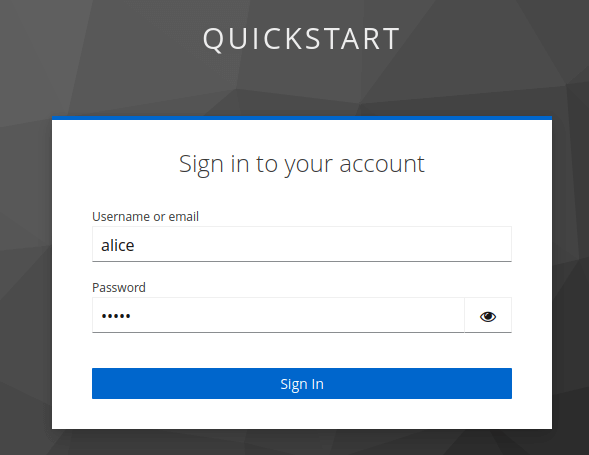
Login using the credentials alice/alice that are available in the Keycloak quickstart Realm:
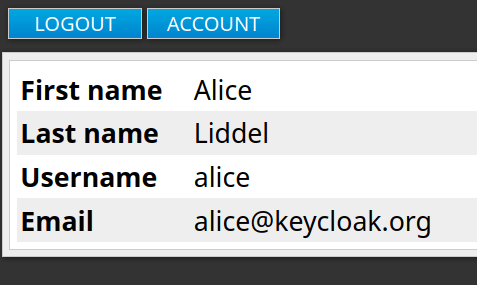
Finally, you should have access to the profile.jsp page which shows the User details (First Name/Last Name/Username/Email):
SAML, Certificates, and Kubernetes/OpenShift in Production
The signing/encryption keypair embedded in keycloak-saml.xml is the part of this setup most likely to bite you in production. A few practices help:
- Never commit a real signing private key to your application's source control, even inside a "config" folder — treat
keycloak-saml.xml'sPrivateKeyPemthe same way you'd treat a database password. - Mount the SAML keypair as a Kubernetes/OpenShift Secret and template it into
keycloak-saml.xmlat deploy time (or point WildFly at an external, mounted copy of the file) rather than baking it into the container image. - Plan for certificate rotation. SAML signing certificates typically have an expiry date (note the
NotBefore/NotAfterfields encoded in the demo certificate above); track expiry dates for both your Service Provider certificate and the Identity Provider's certificate, and update both sides before they lapse — an expired signing cert causes a hard authentication outage, not a soft warning. - Keep
validateResponseSignatureandvalidateAssertionSignatureintentional. The quickstart example disables assertion signature validation for simplicity; in production, validate signatures on both the response and the assertion unless you have a specific, understood reason not to. - Use POST binding over Redirect binding wherever your Identity Provider and Service Provider both support it, exactly as recommended earlier in this article — this matters even more once you're running behind load balancers and proxies that may log full request URLs.
Conclusion
SAML with Keycloak provides a solid SSO solution for integrating existing SAML-based applications or for users specifically requiring this protocol. In this article we have covered the SAML Keycloak Client configuration, and how to provision a WildFly distribution — via WildFly Glow or the officially documented Maven plugin approach — with the keycloak-saml subsystem.
More info about WildFly Glow is available here: WildFly Glow: Next-Gen Evolution in Provisioning
Frequently Asked Questions
Is SAML support for WildFly deprecated like the old Keycloak client adapters?
No. The generic Keycloak client adapters (downloadable ZIPs/CLI installers) were removed in Keycloak 22, but WildFly's SAML integration via the keycloak-saml-adapter-galleon-pack Galleon feature pack is a separate, still actively maintained project, versioned alongside current Keycloak releases and requiring WildFly 29 or newer.
Should I use SAML or OIDC for a new application?
For most new applications, OIDC is simpler to implement and has broader library support. Choose SAML when you need to integrate with an existing SAML-based Identity Provider or enterprise SSO setup that only speaks SAML — a common requirement in B2B/enterprise contexts, even for otherwise modern applications.
Which SAML binding should I use: Redirect or POST?
Use POST binding whenever both sides support it. Redirect binding encodes the SAML message in the URL, which can end up logged by proxies, browsers, and web servers; POST binding keeps it in the request body, which is meaningfully more private and is Keycloak's own recommended default.
Do I need WildFly Glow to provision a SAML-enabled WildFly server?
No, it's a convenience, not a requirement. WildFly Glow auto-detects the layers your deployed application needs and provisions accordingly, which is fast for experimentation. For reproducible CI/CD builds, the explicit wildfly-maven-plugin/wildfly-jar-maven-plugin configuration shown in this article (with named feature packs and layers) is the officially documented, version-pinned alternative.
Can I test this SAML setup without WildFly?
The Keycloak side (Realm, SAML Client, users/roles) is server-agnostic and works the same regardless of which application server consumes the assertions. The keycloak-saml.xml/Galleon feature pack approach in this article is specific to WildFly and JBoss EAP; other stacks (Spring Security SAML, other Jakarta EE servers) use their own SAML integration mechanisms against the same Keycloak Realm/Client configuration.
Why is assertion signature validation disabled in the quickstart example?
Purely to keep the getting-started example simple. In any real deployment, enable validateAssertionSignature="true" (alongside validateResponseSignature) so tampering with the assertion itself, not just the outer response, is detected.
How do I rotate a SAML signing certificate without downtime?
Generate the new keypair, add the new certificate to both sides (Keycloak Client's Keys tab and the Service Provider's keycloak-saml.xml) alongside the old one where your setup supports multiple trusted certificates, cut over signing to the new key, confirm authentication still works, then remove the old certificate — treat it the same as any other zero-downtime credential rotation.
Recommended Articles
Introduction to Keycloak (2026)
Introduction to Keycloak (2026): install and configure Keycloak, create your first Realm, Role, User and Client, and secure a WildFly application with OIDC — updated for Keycloak 26.7 and current WildFly releases.
Create a Quickstart Java EE Application Secured with Keycloak Using kcadm CLI
Learn how to secure your Java EE application with Keycloak using its command line interface (kcadm). #JavaEE #Keycloak #WildFly #Security
Provisioning a Keycloak Server with Ansible - Simplified Identity Management
Learn how to provision a secure Keycloak server using Ansible. Perfect for securing your applications. #Ansible #Keycloak #IdentityManagement #CloudNative
Secure Your Keycloak Installation with HTTPS: A Step-by-Step Guide
How to secure Keycloak 26.7 with HTTPS: PKCS12 keystores, PEM certificates, TLS 1.3, mutual TLS, the current Quarkus-based vault, and TLS termination on Kubernetes/OpenShift.