How to Connect to the H2 Console from the Browser
The H2 Database is a lightweight, high-performance Java SQL database that can run in embedded, in-memory, or standalone server mode[cite: 14]. One of its most powerful features is the built-in, web-based H2 Console, which allows developers to query tables, inspect schemas, and execute SQL scripts directly from a web browser[cite: 14].
In this guide, we will cover how to start the H2 Web Console, configure connection URLs for different modes, enable access in frameworks like Spring Boot, and troubleshoot common connection issues[cite: 14].
For a complete step-by-step setup on configuring the database server itself, see our H2 Database Tutorial and Expert Tips[cite: 14].
1. Starting the H2 Web Console from the Command Line
To connect to an H2 database from an external process or web browser, you must launch H2 in Server mode with the Web Console enabled[cite: 14]. You can do this using the org.h2.tools.Server class bundled in the H2 JAR[cite: 14].
Custom Web Port Configuration
You can explicitly specify the -webPort parameter in your startup command[cite: 14]:
# Launch H2 with Web Console running on custom port 9080
java -cp ./h2-2.2.224.jar org.h2.tools.Server -tcp -web -ifNotExists -webPort 9080
In this example, the Web Console will be accessible at: http://localhost:9080[cite: 14].
Default Web Port Configuration
If you run the startup command without specifying a custom web port[cite: 14]:
# Launch H2 using default server settings
java -cp h2-2.2.224.jar org.h2.tools.Server -tcp -web -tcpAllowOthers -ifNotExists
The Web Console defaults to port 8082[cite: 14]. Open your browser and navigate to: http://localhost:8082[cite: 14].
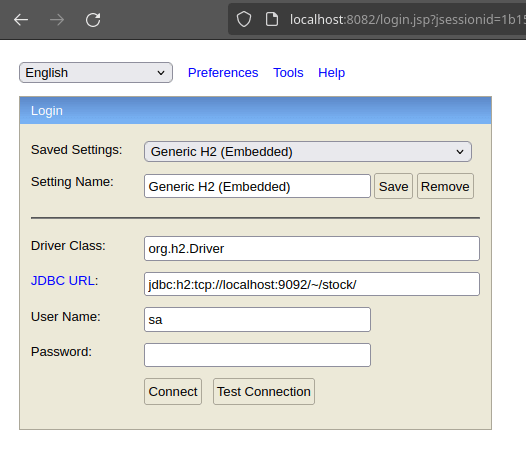
2. Understanding H2 Console Login Parameters
When the H2 Console login page opens in your browser, you need to configure the connection fields properly based on how your database is hosted[cite: 14]:
- Driver Class: Always use
org.h2.Driver. - JDBC URL Formats:
- Server / TCP Mode:
jdbc:h2:tcp://localhost:9092/~/testdb(Connects to a standalone H2 server process)[cite: 14]. - In-Memory Mode:
jdbc:h2:mem:testdb(Database lives only in RAM while active). - Embedded File Mode:
jdbc:h2:file:./data/sample(Direct file access on the local disk).
- Server / TCP Mode:
- User Name: Default is
sa[cite: 14]. - Password: Default is blank (leave empty unless configured)[cite: 14].
3. Enabling H2 Console in Spring Boot Applications
If you are using Spring Boot with an embedded H2 database, you can enable the H2 Web Console directly in your application.properties or application.yml file:
# Enable the H2 Web Console
spring.h2.console.enabled=true

# Custom endpoint path (default is /h2-console)
spring.h2.console.path=/h2-console

# Allow remote access (required for Docker containers or remote servers)
spring.h2.console.settings.web-allow-others=true

# Datasource configuration
spring.datasource.url=jdbc:h2:mem:testdb
spring.datasource.driverClassName=org.h2.Driver
spring.datasource.username=sa
spring.datasource.password=
Once your Spring Boot app is running, navigate to http://localhost:8080/h2-console to access the interface.
4. Identifying Active H2 Ports via CLI
If you forget which port your H2 database or Web Console is using, you can inspect active listening ports using netstat or ss against the process ID (PID)[cite: 14]:
# Find listening ports for PID 1754
netstat -tulpn | grep 1754

tcp6       0      0 :::8082                 :::*                    LISTEN      1754/java
tcp6       0      0 :::9092                 :::*                    LISTEN      1754/java
As shown in the output[cite: 14]:
- Port 8082: HTTP Web Console connection[cite: 14].
- Port 9092: TCP Server socket for application connections (e.g., JDBC drivers)[cite: 14].
Frequently Asked Questions & Troubleshooting
Why do I get "Remote connections are not allowed" in H2 Console?
By default, H2 restricts Web Console connections to localhost for security reasons. If H2 is running inside a Docker container or remote server, pass the -webAllowOthers flag at startup:
java -cp h2-2.2.224.jar org.h2.tools.Server -web -webAllowOthers -webPort 8082Why do I see "Database not found" when connecting via TCP?
If the target database file does not exist yet on the server, H2 will reject the TCP connection. Ensure you include the -ifNotExists flag in your startup script so H2 automatically creates missing database files upon first connection[cite: 14].
How do I fix "Wrong user name or password" error?
By default, new H2 databases are created with user sa and an empty password[cite: 14]. If you receive an authentication error, verify if your application framework (like Spring Boot) customized the default credentials in configuration properties.
Conclusion
Connecting to the H2 Database Console from your browser provides an intuitive way to manage data during development and testing[cite: 14]. By default, H2 uses port 8082 for HTTP browser connections and port 9092 for TCP database connections[cite: 14].
Recommended Articles
Monitor WildFly MBeans and Manage Database Connections via Twiddle - A Comprehensive Guide
Learn how to monitor WildFly MBeans from the shell using Twiddle commands. Discover tips for changing database connection pool sizes and managing connections in JBoss AS 7/WildFly.
Efficient WildFly Domain Management Using Web Console and Topology View
Mastering WildFly Domain Mode with ease using the Web Console and Topology view for centralized management. #WildFlyDomainMode #JavaDev #CloudNative
Discover Where JBoss EAP/WildFly Logs Are Located: Standalone vs Domain Mode
Learn where to find and view logs in JBoss EAP/WildFly, whether running in standalone or domain mode.
Securely Connect to Your Enterprise Java Application Server Using SSH Tunnels
Learn how to access a running WildFly server from outside using SSH tunnels and Putty.