How to Add an Admin User in Keycloak
Creating an admin user in Keycloak is a mandatory step for automating administrative tasks and managing your Keycloak instance. This tutorial, updated for Keycloak 26.7, will guide you through adding an admin user using the Web Console, environment variables, and the dedicated bootstrap-admin command — including how to use that same command to recover access if you ever lose the admin password.
The Default Flow to Add an Admin User
Firstly, when you install a Keycloak server, you will be prompted to enter an admin user upon first access to the console (http://localhost:8080):
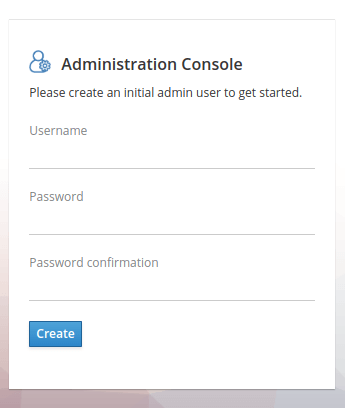
Although this is a simple approach, it would be better to have a way to automate the creation of the admin user. Let's see how to do it in the next sections.
Creating an Admin User Using Environment Variables
For automation purposes, you can also define KC_BOOTSTRAP_ADMIN_USERNAME and KC_BOOTSTRAP_ADMIN_PASSWORD before the first startup. These variables allow Keycloak to bootstrap an administrative user without manual input, making them ideal for containerized or scripted deployments.
It's important to note that these environment variables are only effective during the first startup, and specifically only while the master Realm doesn't exist yet. Once the initial admin user is created, Keycloak will ignore these variables on subsequent launches — even if they're still present — logging a warning instead of failing the startup. After the admin account is in place, you can manage users and roles through the Admin Console or the kcadm.sh command-line tool.
export KC_BOOTSTRAP_ADMIN_USERNAME="newadmin"
export KC_BOOTSTRAP_ADMIN_PASSWORD="newadmin"
As you can see from the log of Keycloak, upon startup the "newadmin" user has been added to the "Master" Realm:
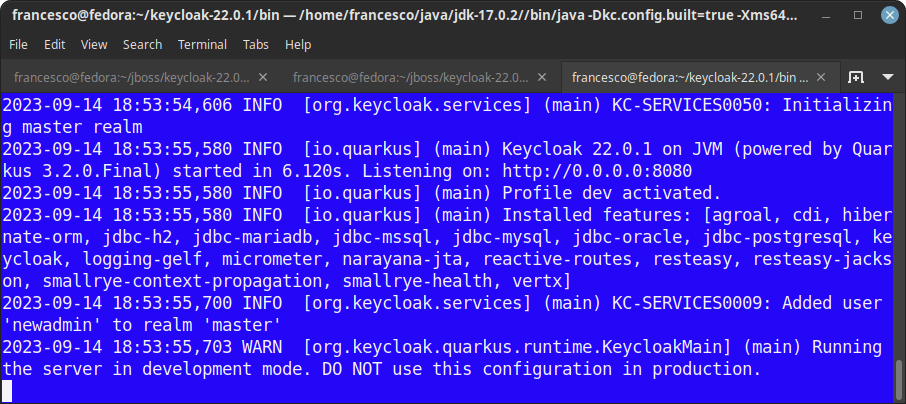
Therefore, the next time you start Keycloak you won't need to set the admin credentials again.
The same variables work when starting Keycloak with Docker:
docker run --name keycloak -p 8080:8080 \
    -e KC_BOOTSTRAP_ADMIN_USERNAME=newadmin \
    -e KC_BOOTSTRAP_ADMIN_PASSWORD=newadmin \
    -v keycloak_data:/opt/keycloak/data \
    quay.io/keycloak/keycloak:latest start-dev
Mounting a volume for /opt/keycloak/data (as shown above) matters here: without persisted data, every container restart looks like a genuinely first startup to Keycloak, which is usually not what you want outside of pure throwaway testing. For a deeper walkthrough of running Keycloak in Docker, see our Keycloak with Docker and Docker Compose guide.
On Kubernetes/OpenShift, keep these out of plain env vars in your manifests
Store KC_BOOTSTRAP_ADMIN_USERNAME/KC_BOOTSTRAP_ADMIN_PASSWORD in a Kubernetes Secret and reference them via valueFrom.secretKeyRef in your Deployment, rather than hardcoding plaintext credentials into a manifest that ends up in version control. Since these variables only matter on the very first startup, remember that rotating the Secret afterward has no effect on an already-bootstrapped instance — see the recovery section below if you need to regain access later.
Creating an Admin User from the Realm
This option can be useful if you want to add one or more extra admin users to your Keycloak server. You'll need to log in with an admin user on the Master Realm first. Then, choose to add a user:
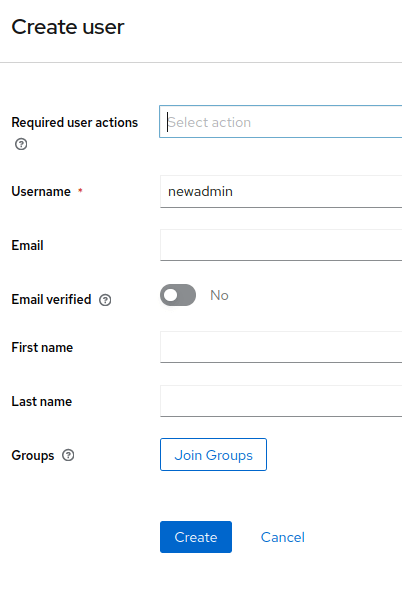
Set the User Credentials and assign the user to the Admin Role:
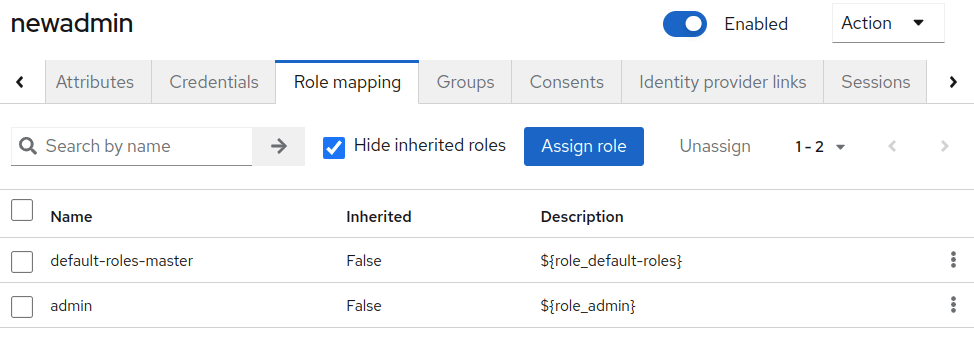
Now you can use the "newadmin" user as an additional administration user.
If you'd rather script this instead of clicking through the console, the same task can be done with kcadm.sh once you already have one working admin session:
kcadm.sh config credentials --server http://localhost:8080 --realm master --user admin
kcadm.sh create users -r master -s username=newadmin -s enabled=true
kcadm.sh set-password -r master --username newadmin --new-password newadmin
kcadm.sh add-roles -r master --uusername newadmin --rolename admin
Creating a Temporary Admin with the bootstrap-admin Command
Alongside the startup environment variables, Keycloak ships a dedicated bootstrap-admin command that works in more situations than the environment variables above: it can create a temporary admin account even if the Master Realm already exists — which is exactly what makes it the right tool for password recovery, covered in the next section. All Keycloak nodes need to be stopped before running it.
# Create a temporary admin user (interactive prompts for username/password if omitted)
bin/kc.sh bootstrap-admin user --username temp-admin --password temp-pass

# Or create a temporary admin service account (client credentials) instead of a user
bin/kc.sh bootstrap-admin service --client-id temp-admin-service --secret temp-secret
Both variants accept --no-prompt for fully non-interactive/scripted use, and --expiration to control how long the temporary account remains valid (the default is 120 minutes). This is deliberate: a bootstrap-admin account is meant to exist just long enough for you to log in and either fix the "real" admin account or create a proper, permanent one — not to be used as a long-term credential. The Admin Console clearly flags these accounts as temporary in its UI while they're active.
How to Recover the Admin Password
Keycloak users are stored in a database; however, you will not be able to recover the password by looking into the database's CREDENTIAL table (it stores a salted hash, not the password itself). There are a few ways to regain access if you've lost the admin credentials, from most to least recommended:
- Use the
bootstrap-admincommand (shown above) — this is the officially documented, clean recovery path today. Stop all Keycloak nodes, runbin/kc.sh bootstrap-admin user --username recovery-admin --password recovery-pass, start Keycloak back up, log in with that temporary account, and either reset the original admin's password or promote the temporary one to a permanent user. - Enable Password Recovery for users in your Realm (covered below) — useful going forward, but only if email/SMTP is already configured and the account in question has a verified email address on file.
- Delete the admin user directly from the database — a last-resort option, more invasive and error-prone than the two above. You can find more details in this article: How to access Keycloak H2 Database.
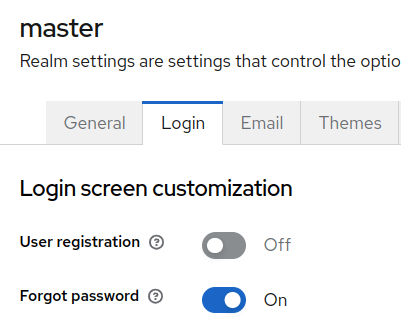
In order to enable Password Recovery for your users, select the Login tab in your Realm Settings. From there, enable the "Forgot password" option (this requires a working SMTP/email configuration in the Realm to actually deliver the reset link):
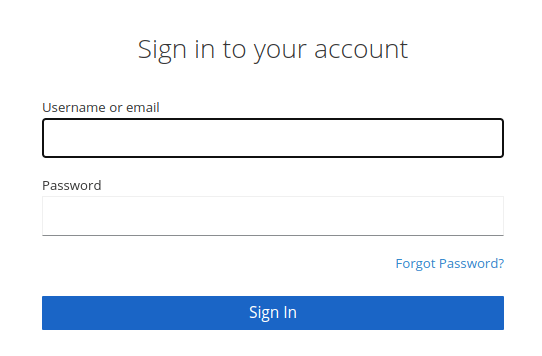
As you can see, the next time you attempt a login in Keycloak you will see the "Forgot Password" link, which you can follow to recover your password:
Conclusion
That's it! In this article we discussed how to add an initial admin user in Keycloak using the Web Console, environment variables, or the dedicated bootstrap-admin command — and how that same command is also the recommended way to recover admin access if you ever get locked out, rather than editing the database directly.
Frequently Asked Questions
Why don't KC_BOOTSTRAP_ADMIN_USERNAME and KC_BOOTSTRAP_ADMIN_PASSWORD work anymore after I restart Keycloak?
By design — these variables are only honored during the very first startup, before the Master Realm exists. On every subsequent start, Keycloak ignores them and logs a warning instead. If you need to create or recover an admin account after that point, use the bootstrap-admin command instead.
What's the difference between bootstrap-admin user and bootstrap-admin service?
bootstrap-admin user creates a temporary human admin account (username/password) you can log into the Admin Console with. bootstrap-admin service creates a temporary admin service account (client credentials) suited for scripted/API access instead, with no interactive login involved.
Do I need to stop Keycloak to run bootstrap-admin?
Yes — all Keycloak nodes must be stopped before running bootstrap-admin. It's a maintenance-style operation, not something you run against a live, serving instance.
How long does a bootstrap-admin account stay valid?
120 minutes (2 hours) by default, controllable with --expiration. It's intentionally temporary — use it to log in and either fix your permanent admin account or create a new one, then let it expire (or remove it) rather than relying on it long-term.
I lost my Keycloak admin password — what's the fastest safe way to recover it?
Stop Keycloak, run bin/kc.sh bootstrap-admin user --username recovery-admin --password recovery-pass, start Keycloak again, and log in with those temporary credentials to reset the real admin account. This is safer and far less invasive than editing the database directly.
Can I create additional admin users without clicking through the Admin Console?
Yes — once you have one working admin session, use kcadm.sh to script user creation, password setting, and role assignment, as shown in the "Creating an Admin User from the Realm" section above. This is the more practical approach for repeatable, automated environment setup.
Recommended Articles
How to Export and Import Realms in Keycloak (CLI, REST API, Operator)
Full guide to exporting and importing Keycloak realms: Admin Console, kc.sh CLI, the Admin REST API for automation, and the Keycloak Operator for GitOps-style realm management on Kubernetes.
Retrieve User Metadata and Custom Attributes in Latest Keycloak Using Quarkus - Tutorial
Learn how to retrieve user metadata and custom attributes from latest Keycloak using Quarkus. Includes creating a Realm, Admin user, and setting up basic configurations.
Add New User to Keycloak Using Command Line Interface (CLI) and Quarkus
Learn how to add a new user in Keycloak using CLI for both legacy and Quarkus distributions. Includes step-by-step instructions.
How to Use Keycloak REST API (2026 Edition)
How to use the Keycloak REST Admin API in 2026: get an access token, create Realms, Users and manage them via curl, plus production-safe alternatives to the password grant and Kubernetes/OpenShift automation tips.